Automatic Charging for Late Cancellation and No-Show Appointments
Last updated: February 7, 2026
Osmind enables practices to automatically charge for appointments that are marked as late cancellations or no-shows, in addition to appointments that have occurred. Administrators can configure late cancellation and no-show settings, including fees, within account settings.
When this feature is enabled, a patient will be automatically charged a specified fee when their appointment is marked as:
Late Cancellation — the patient cancels outside of your practice’s cancellation policy window
No-Show — the patient fails to attend the appointment
Enabling Automatic Charges for Late Cancellations and No-Shows
To enable this feature:
Navigate to Settings (Gear Icon) → Appointments → Payments and Credits
Click Edit
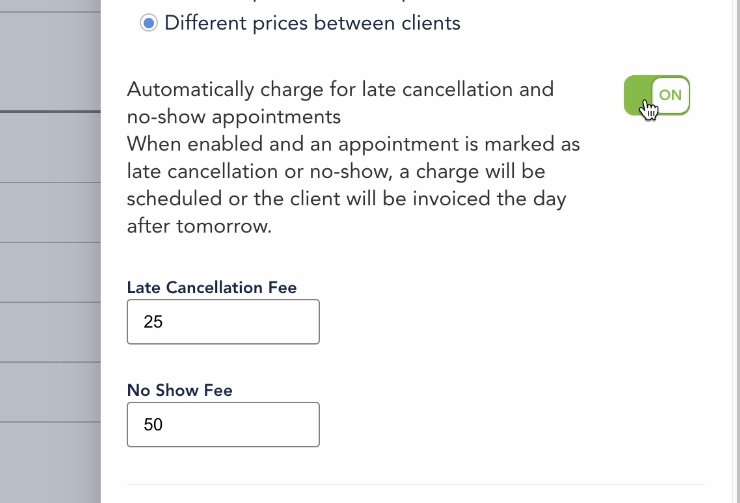
Enable Automatically charge for late cancellation and no-show appointments
Set the specific fee amounts for:
Late Cancellations
No-Shows
Admins and providers can enable this feature as long as Pricing per Appointment Type is also enabled in Settings.
Classifying Late Cancellation and No-Show Appointments
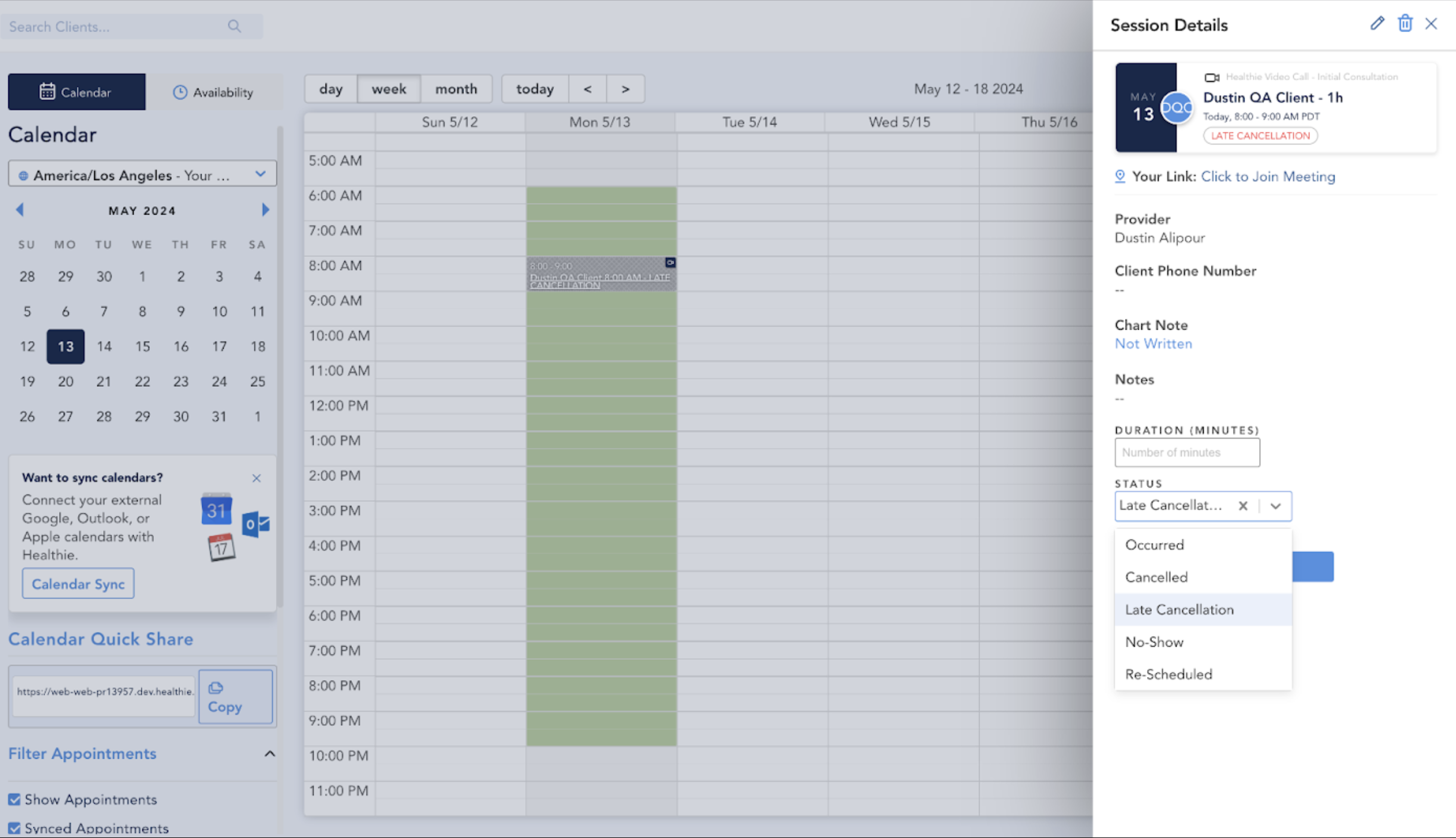
Late cancellation and no-show designations are applied directly within the calendar.
Navigate to Calendar
Click on the appointment
Use the Status dropdown
Select Late Cancellation or No-Show
Admins and providers can manually adjust an appointment’s status as needed.
Important notes:
The timeframe that qualifies as a “late cancellation” is defined by your practice’s policies, not by Osmind
Osmind does not automatically determine whether a cancellation is late
What Happens When an Appointment Is Marked
When an appointment status is changed to Late Cancellation or No-Show:
A charge is automatically scheduled to the patient’s card on file
If the patient does not have a card on file, an invoice is generated instead
Additional Notes
The calendar can be filtered by Late Cancellation and No-Show statuses
Appointments marked with these statuses are reflected in the patient’s appointment information within the calendar overview
This functionality applies only to 1:1 appointments (not group appointments)
Accessing Appointment Reports
The Appointments Report includes Late Cancellation and No-Show as selectable statuses in the Status column. This allows administrators and providers to track trends and better understand late cancellation and no-show rates across the practice.
Tip: Have Patients Sign a Late Cancellation Policy
Osmind provides a library of templated forms and charting notes, along with tools to build custom forms.
Within the Forms Library, you’ll find templates commonly used to establish cancellation expectations, including:
General Cancellation Policy
Late Cancellation or No-Show Policy
These forms are typically available by default. If you do not see them in your account, contact Osmind Support and they can add them for you.