Self-Pay Charging / Invoicing
Last updated: February 3, 2026
Overview
Here are some common use cases for sending an invoice to your patient:
Self-pay appointments
Co-pays
Patient responsibilities from insurance payments outstanding
Collections that fall outside of a Patient Package (e.g., a Cancellation Fee, where no credit card is on file)
One-time, ad-hoc payments
Services rendered for patients without a credit card on file
Osmind supports both automatic and manual billing workflows for appointments through integrated payment processing.
Self-Pay Charging Recommendations
To ensure self-pay payments are collected, the recommendation is:
Automatic Charging AND Automatic Invoicing → both ON, or
Automatic Charging AND Automatic Invoicing → both OFF
This decision should be applied practice-wide.
Automatic Charging & Invoicing Configuration
Configuration | Patient HAS payment on file | Patient DOES NOT have payment on file |
Auto-Charging AND Auto-Invoicing ON (✅ Recommended) | Automatically charged | Automatically invoiced |
Auto-Charging ON, Auto-Invoicing OFF | Automatically charged | ⚠ No action taken |
Auto-Charging OFF, Auto-Invoicing ON | ⚠ No action taken | Automatically invoiced |
Auto-Charging AND Auto-Invoicing OFF | No action taken | No action taken |
Automatic Billing Workflows
When properly configured, Osmind offers automatic billing via two automated functions, triggered when an appointment is marked as “Occurred.”
1. Automatic Charging
When patients have a valid payment method on file, Osmind automatically schedules electronic charges for the day after tomorrow.
Card is charged directly
Patients receive an email receipt
Payments appear on the Payments page with an “Appointment” designation
2. Automatic Invoicing
When patients do not have a valid payment method on file, Osmind automatically generates and sends invoices.
Invoice appears in Patient Profile → Billing → Invoices
Patients receive email notifications and reminders every 5 days
Payment status updates automatically once paid
Invoice includes appointment type and date
Additional Options
Enable automatic charging for late cancellations and no-shows
(Settings → Appointment Settings → Automatically Charge for Late Cancellation and No-Show Appointments)
Configure specific patients to not be auto-charged
Configure Situational Pricing per appointment type or provider
Automatically deduct from patients’ Credit Balance (advanced support request)
Automatic Billing Setup Steps
Enable Pricing per Appointment Type
(Settings → Appointments → Payments and Credits)
Set default prices for appointment types
(Settings → Appointment Types → Pricing)
Enable both:
“Automatically charge for appointments”
“Automatically invoice patients”
Manual Invoicing
Creating and Sending Invoices
Billing → Payments → Create Invoice
Associate invoice with the applicable service
Enter patient information, amount, and notes
Preview → Create Invoice
Delivery options:
Email to patient
Download & print
If unpaid after 5 days, the patient receives automatic reminders and sees a portal banner.
Invoicing: Patient Experience
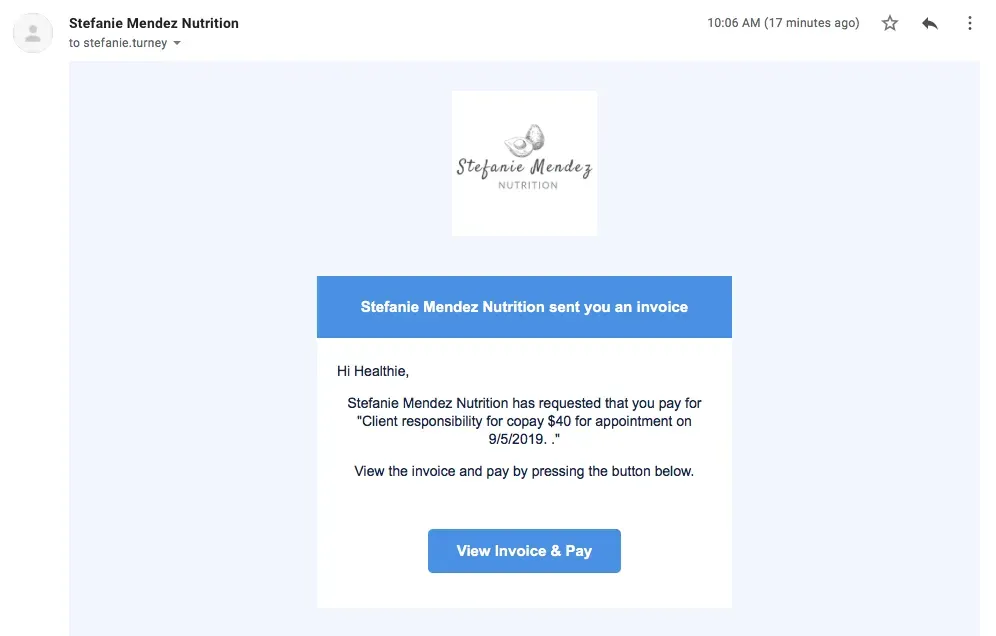
When an invoice is created, the patient receives an email with a payment link
If linked to a CMS-1500 claim, the claim status updates automatically once the patient pays
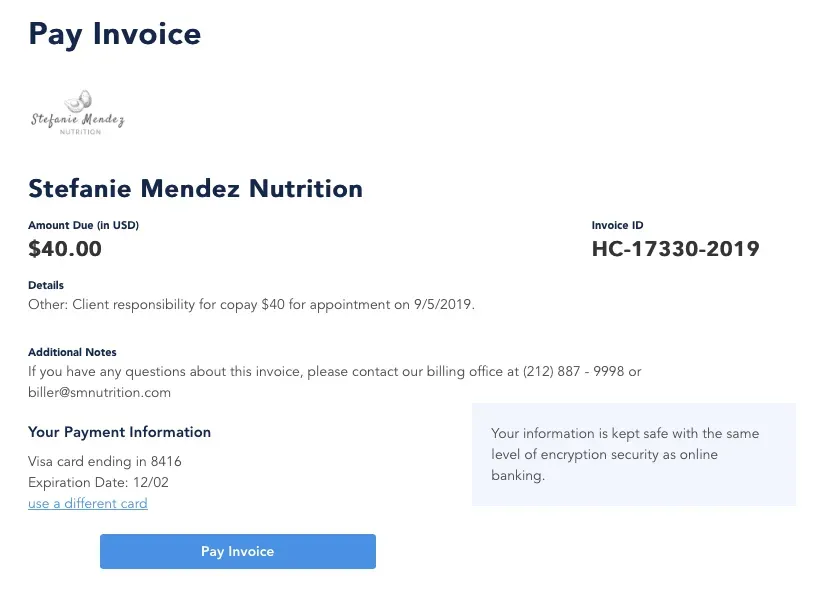
Patients can view invoices in their portal under Payments
Note: If they have not yet completed all of their required intake forms, they will need to complete these forms prior to seeing their Invoice prompt.
Recording Manual Payments
Prerequisite: Patient must have billing information on file.
Steps:
Patient Profile → Billing → Charge Patient
OR Billing → Payments → Charge a Patient
Enter charge details and submit
Partial payments are supported and tracked until fully paid.
Write-Offs for Invoices
Write-off reasons include:
Discount
Uncollectible
Financial hardship
Billing error
Other
All write-offs are documented in the Invoices Report.
Managing Payments
Providers can:
Stop scheduled payments
Refund payments
Send receipts
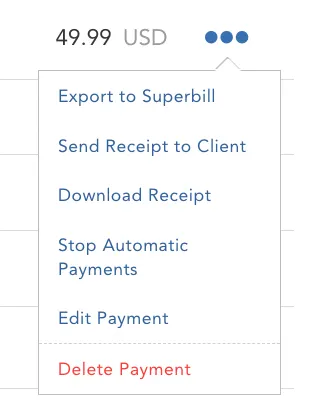
Export to Superbill
Edit or delete payments
All actions are accessible via Billing → Payments → “…” menu.