How to Set Up Your Osmind EHR: Complete Getting Started Checklist
Last updated: August 21, 2026
This checklist walks you through everything you need to fully configure your Osmind EHR and start seeing patients. Steps are organized by phase so you know what to set up first.
Most practices complete full setup within 60 days. You can begin seeing patients as soon as your core workflow (Phases 1–3) is configured.
Phase 1 — Day 1: Access & Integrations
Complete these steps before anything else. Some integrations take several days to activate, so submit requests early.
Account Access
☐ Log in to Osmind — Credentials arrive by email within one business day of contract signing. Check spam if you don't see it. Log in here.
☐ Invite team members — Add staff, billing coordinators, or other providers by submitting an Add EHR User form.
☐ Set up your practice profile — Add your NPI and practice address under Organization.
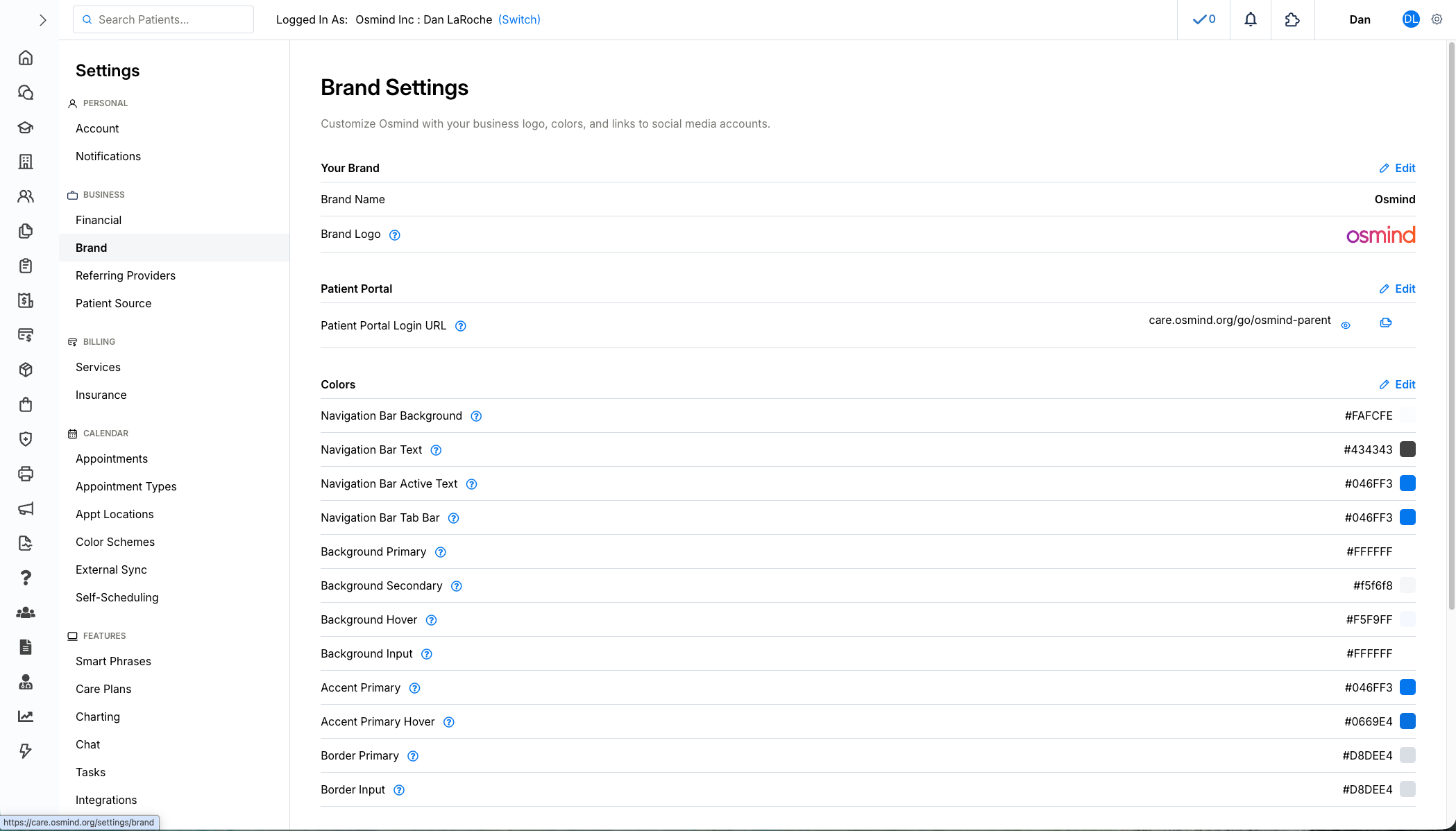
☐ Set up your practice branding — Add your logo, social media links and more. Details here.
Submit Integration Requests Early
Some features require activation and can take time to turn on. Submit these via the Customer Portal as soon as possible.
☐ PDMP — View your state's prescription drug monitoring program directly in the EHR.
☐ Lab integrations — Connect reference labs for in-app result delivery. Available for practices on eligible plans (such as Osmind One) with no additional Osmind fees. Submit the form and select your lab setup type: Quest, LabCorp, other vendor, or e-Labs Direct cash-pay.
☐ Set up credit card processing — Configure payment collection to accept patient payments at or before appointments. Osmind partners with Stripe to provide secure payment processing. Your practice website must be active and accessible before you can complete Stripe account setup — Stripe requires an active website URL to verify practice details. This form collects the information required to enable payments for your account. Please submit one form per practice or account.
☐ Claim.MD — Required if you plan to submit claims electronically.
☐ Patient Data Migration — If importing records from a prior EHR, you'll need to complete this form.
Tip: Submit integration forms on Day 1. Some take several business days to activate and can block your billing or prescribing workflow if delayed.
Phase 2 — Core Scheduling Setup
Configure scheduling before adding real patients so everything is ready on day one.
Appointment Types & Locations
☐ Create your appointment types — Add every session type you offer (e.g., Intake Evaluation, Medication Management, Follow-Up, Spravato Session, TMS Session).
☐ Add practice locations — Required if you see patients at more than one office, or via telehealth.
☐ Set pricing per appointment type — Attach a self-pay rate or CPT code to automate billing downstream.
☐ Enable patient self-booking — Choose which appointment types patients can book on their own.
☐ Color-code your calendar — Go to Settings → Color Schemes for at-a-glance schedule reading.
Migrating from another EHR? Match your previous appointment type names exactly to ensure a clean data import.
Availability & Calendar Sync
☐ Set your availability — Go to Settings → Availability and define your working hours.
☐ Connect your external calendar — Sync with Google Calendar (two-way), Outlook (two-way), or Apple Calendar (one-way) to prevent double-booking.
☐ Configure appointment reminders — Set automated email and text reminders per appointment type to reduce no-shows.
Phase 3 — Patient Intake & Forms
Set up your intake workflow before your first patient books. Once configured, forms send automatically.
Patient Groups & Intake Flows
☐ Create patient groups — At minimum, create a New Patients group and an Established Patients group. Groups control which forms patients automatically receive.
☐ Review your default intake flow — Osmind includes a default flow. Find it under Forms → Intake Flows.
☐ Customize your intake flow — Use drag-and-drop editing to add, remove, or reorder form sections to match your practice.
☐ Add treatment-specific intake flows — Create separate flows for Spravato, TMS, ketamine, or other specialty services if needed.
☐ Verify forms send automatically — Link forms to patient groups so they send on patient creation without any manual steps.
Link Forms to Appointment Types
In addition to intake flows, you can send forms automatically based on appointment type — useful for visit-specific documentation.
☐ Attach consent forms per appointment type — For example, a Spravato consent form sent at booking, or a symptom checklist sent before a visit.
☐ Configure form timing — Choose whether forms send after booking, before the appointment, or after the visit.
☐ Add rating scales — Choose from 50+ validated scales (PHQ-9, GAD-7, PCL-5, etc.) to automate outcomes tracking.
Best practice: Use Intake Flows for onboarding forms and patient history. Use Appointment Type forms for visit-specific screeners, consents, and procedure documentation.
Phase 4 — Charting & Documentation
Understand your note templates and smart phrases before seeing your first patient to save time on every visit.
☐ Review charting templates — Osmind includes psychiatry-specific templates. Browse them under Forms section.
☐ Custom Note Template — Use our Custom Note Template with your smart phrases if our included charting templates don't work for you.
☐ Add smart phrases — Create text shortcuts for commonly typed phrases to speed up documentation.
Our charting templates include built-in logic, like REMS submission that will not work if you duplicate or edit them.
Phase 5 — Billing & Payments
Configure billing settings before your first visit so invoicing flows without delays.
Set Up Service Codes
Service Codes are your central hub for managing the CPT codes tied to your practice. Setting these up first ensures consistency across superbills, claims, and appointment pricing.
☐ Enable Pricing per Appointment Type — Go to Settings → Appointments → Payments and Credits and toggle on Pricing per Appointment Type. This must be enabled before you can attach CPT codes to appointment types.
☐ Add your CPT codes — Go to Settings → Services → + Add. Search by code number (e.g., 90832) or description (e.g., "psychotherapy"). Set a default price per unit — this is your standard fee schedule rate.
☐ Add payer-specific contracted rates (if billing insurance) — In Settings → Insurance Settings, enable Contracted (Allowed) Rate by Payer. Then, for each CPT code in Services, add your contracted rate per payer. This tracks what each insurer will actually pay and supports accurate patient responsibility calculations.
Note: Units on CPT codes represent time. Most codes use 15-minute units — for example, a 60-minute session billed as 4 units at $32.50/unit = $130. Double-check unit definitions for each code before setting your rate.
Link CPT Codes to Appointment Types
Once your Service Codes are set up, attach them to the appointment types you created in Phase 2. This is what enables automated claim creation downstream.
☐ Attach a CPT code to each billable appointment type — Go to Settings → Appointment Types → Edit → expand the Pricing section → select the CPT code and enter the number of units.
☐ Set up superbill generation — If you're out-of-network, configure superbills so patients can submit for reimbursement directly from the Osmind app.
Configure Billing Providers & Service Facilities (Claims integrations only)
Only relevant if you are submitting claims through Osmind's Claim.MD or Office Ally integration. These fields populate Boxes 32 and 33 on the CMS 1500 and cannot be fully validated until you run a test claim. Complete this step after adding your first patient.
☐ Add your Billing Provider — Go to Settings → Insurance → Billing Providers and add your practice's billing entity (name, address, NPI Type 2/Group NPI, and Tax ID/EIN). This populates Box 33 on the CMS 1500. Set one as the default.
☐ Add your Service Facility/Facilities — Add directly on your first CMS1500 form. Enter the location where services are rendered, including the facility NPI. You can have multiple facilities — each one you add becomes available in the claim form dropdown going forward.
☐ Run a test claim and verify — After your first patient appointment, generate a CMS 1500 and review that Box 32 (Service Facility) and Box 33 (Billing Provider) populate correctly before submitting to the clearinghouse.
Adding more billing providers or service facilities? If your practice has multiple billing entities or locations — for example, a separate telehealth Place of Service (POS 02) alongside an in-office location — you can add them directly from the claim form dropdown when completing a test claim. Select "Add New Billing Provider" or "Add New Service Facility" from the dropdown, and it will be saved and available on all future claims.
Tip: If Box 32 and Box 33 contain identical information, the clearinghouse will typically strip Box 32 from the EDI file — this is expected behavior.
Phase 6 — Add Your First Patient
Once setup is complete, add a test patient to verify your full workflow before going live.
☐ Add a test patient — Go to Patients → Add Patient and enter a name and email address. Note: You can create test patients to verify intake flows and forms, but test clinician accounts cannot be created.
☐ Verify intake forms send automatically — Confirm the patient receives their portal invite and the correct intake forms.
☐ Test the patient portal experience — Open the portal invite as your test patient to see exactly what they see.
☐ Add your real patients — Once your workflow is verified, begin adding your patient roster.
Optional: Advanced Setup
These steps aren't required on day one, but unlock additional efficiency as your practice grows.
Patient Engagement & Communication
☐ Enable patient self-scheduling — Share your booking link or embed it on your website.
☐ Set up broadcast messaging — Send a single message to all patients for closures, schedule updates, or announcements.
☐ Create patient engagement programs — Deliver videos, documents, and forms to enrolled patients on a custom schedule.
☐ Configure measurement-based care — Automate rating scale delivery and review outcome trend graphs between visits.
Group Practices & Multi-Provider Teams
☐ Set provider-level availability — Each provider should configure their own availability and calendar sync.
☐ Assign appointment types by provider — Use the "Requires Provider" setting to control which providers patients can book with.
☐ Share your Osmind calendar with your team — In Google Calendar, share the Osmind calendar with team members who only have access to GCal to prevent double-booking.
Quick Reference Checklist
Use this summary to track your overall progress.
Phase 1 — Access & Integrations
☐ Log in to Osmind
☐ Invite team members
☐ Set up practice profile (NPI, address via Organization Settings; name/logo via Support)
☐ Submit integration requests (e-prescribing, labs, clearinghouse)
Phase 2 — Scheduling
☐ Create appointment types ☐ Add locations
☐ Set pricing and self-booking settings
☐ Set availability
☐ Sync external calendar
☐ Configure appointment reminders
Phase 3 — Intake & Forms
☐ Create New Patients and Established Patients groups
☐ Review and customize default intake flow
☐ Create treatment-specific intake flows (if needed)
☐ Link forms and rating scales to appointment types
Phase 4 — Charting
☐ Review and customize note templates
☐ Add smart phrases
☐ Set up telehealth note template (if needed)
Phase 5 — Billing
☐ Enable Pricing per Appointment Type
☐ Add CPT codes to Services with default rates
☐ Add payer-specific contracted rates (if billing insurance)
☐ Link CPT codes to each billable appointment type
☐ Set up credit card processing
☐ Set up superbill generation
☐ Add Billing Provider + Service Facilities and run a test claim (Claim.MD / Office Ally only — after first patient)
Phase 6 — First Patient
☐ Add a test patient and verify the full workflow
☐ Add real patients
☐ Plan data migration (if applicable)
If you need help at any step, contact Support via the Customer Portal or visit the Osmind Knowledge Base.