Deep Dive: Appointments Dashboard and Report
Last updated: March 2, 2026
The Appointments Dashboard and Report enable you to track and analyze appointments scheduled within the platform. Use this easy-to-view data to reconcile patient appointments by provider, by location, and run analyses on appointment no-show rates, amongst other needs.
In addition to the .csv file that you can generate, information relevant to Appointments will also display visually within Osmind.
IN THIS ARTICLE:
Accessing the Appointments Dashboard
Accessing the Appointments Report
Understanding the Key Metrics
Filtering Options
Accessing the Appointments Dashboard
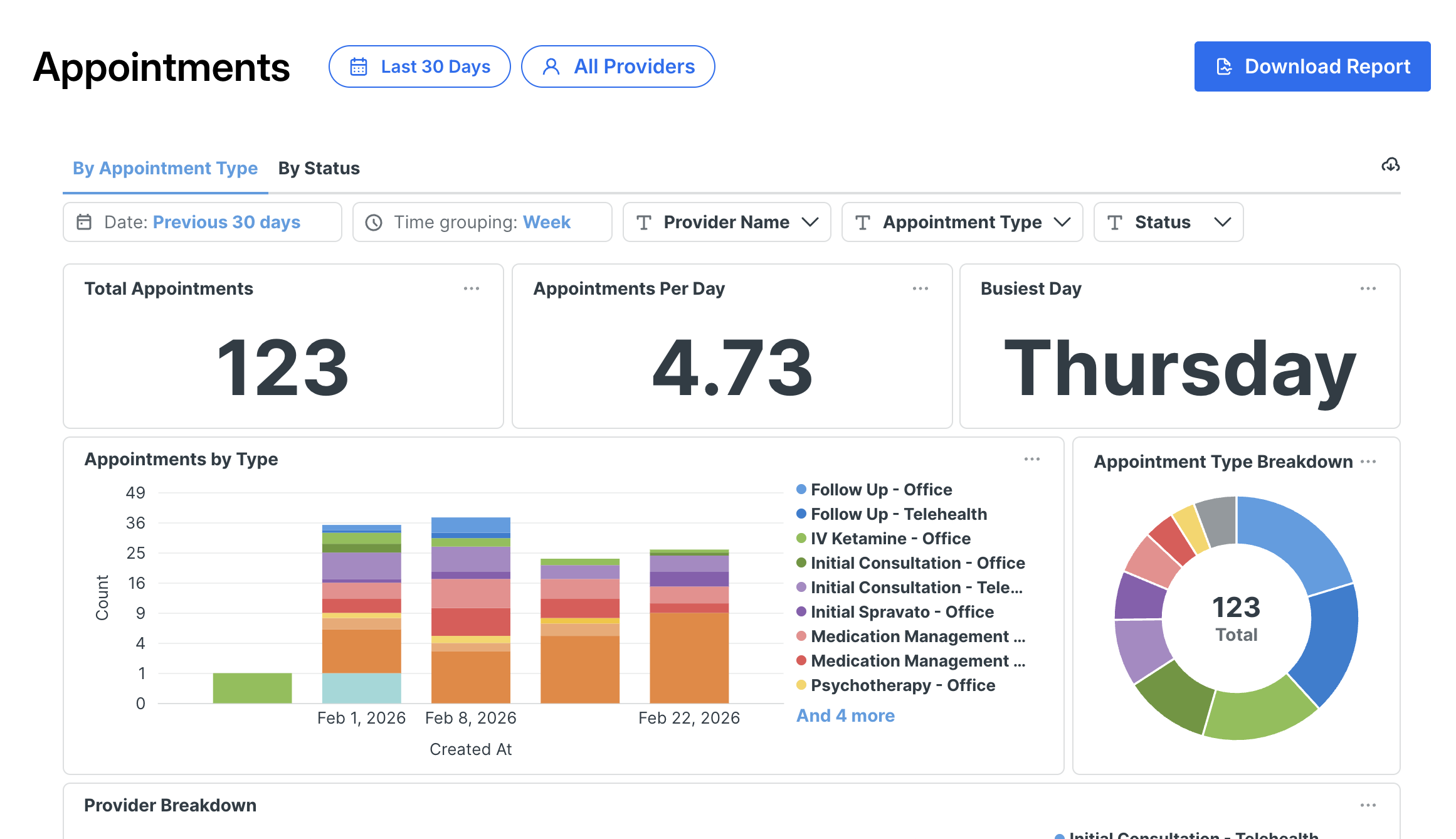
From your Osmind Dashboard, navigate to Visualize > Appointments > Select the Date Range.
The dashboard is a visual overview of appointments.
Accessing the Appointments Report
From your Osmind Dashboard, navigate to Visualize > Appointments > Select the Date Range > Click the 'Download Report' button (top right) > Generated Reports.
This will automatically generate the report within your Osmind Documents Library as a CSV file within the Generated Reports folder. You may open it directly from your computer, rename the file, relocate the file within your library, or even delete the file.

Fields that are included in this report:
Appointment Date
Patient Name
Patient Email
Patient Timezone
Patient State
Patient Unique Osmind ID
Patient Status (active or archived)
Patient Attendance for Group Appointments (yes or no, if documented by the provider)
Patient Date of Birth (if documented)
Patient Primary Insurance (if documented)
Patient Phone Number
Provider (patient booked an appointment with)
Scheduled By (i.e., the wellness provider, another member of your organization, or your patient)
Appointment Status (occurred, cancelled, no-show, rescheduled)
Date of Last Status Change
Appointment Type
Scheduled Length (time length scheduled for appointment)
Actual Duration (of the appointment)
Contact Type (in-person, video call, phone)
Location (if your organization hosts appointments in multiple locations)
Reason (for the appointment)
Notes (any added notes by the provider within the appointment details)
Chart Note Written (yes or no)
Patient's Current Group
Patient's Diagnosis Code (if provider has documented one)
Scheduled at (the time the appointment was scheduled)
Number of Times Rescheduled by Patient
Patient Tags
Charting Note "Locked" status (Yes/No)
Referring Physician Name and Contact Details (multiple columns if provided)
Legal Patient Name
Charting Note Signed
Appointment ID
CPT Codes Used
Understanding the Key Metrics
The Appointments Report provides comprehensive data about each appointment scheduled in your practice. Several key columns help you track appointment outcomes and scheduling patterns:
Total appointments booked in a selected time period
Average number of appointments per day
Busiest day of the week
Breakdown of appointment types
Appointment status (occurred, rescheduled, cancelled, no-show, or no status)
Notes Column Notes that you write about each appointment will be generated as a text column in the Appointments Report.
Length and Actual Duration
Length: The intended, scheduled duration of the appointment
Actual Duration: A manually inputted field that a provider can edit, reflecting the actual duration of an appointment. Note: In order for data to appear in this column, a member of your team must manually enter this information; otherwise it will appear blank.
Filtering Options
The Appointments Dashboard offers several filtering options to help you analyze your data effectively:
Date Picker: Use the Date Picker to choose from preset ranges (e.g., last 7 or 90 days) or select Custom to define your own start and end dates. When you log back in, the most recent date selection will automatically apply.
Status: Select the appointment status from the dropdown, which indicates the final result of the appointment(s).
Provider (for organizations): If you're part of a multi-provider org, you can filter data by individual provider by clicking All Providers > selecting or deselecting names > Apply.
Appointment Type: You can filter by appointment type by clicking Appointment Type > select or deselect appointment types > Apply.