Deep Dive: Payments Dashboard and Report
Last updated: March 2, 2026
The Payments Dashboard and Report enable you to track and analyze your financial data without the need for manual exports.
In addition to the .csv file that you can generate, information relevant to Payments will also display visually within Osmind, allowing you to quickly assess financial performance at a glance.
IN THIS ARTICLE:
Accessing the Payments Dashboard
Accessing the Payments Report
Understanding the Key Report Metrics
Filtering Options
Accessing the Payments Dashboard
From your Osmind Dashboard, navigate to Visualize > Payments.
Note: The initial view before filtering will include payments data from the previous month.
For Organizations, team members need the "Can generate organization reports" and "Can view all organizational billing" permissions enabled in order to view the Provider Utilization Dashboard and Report.
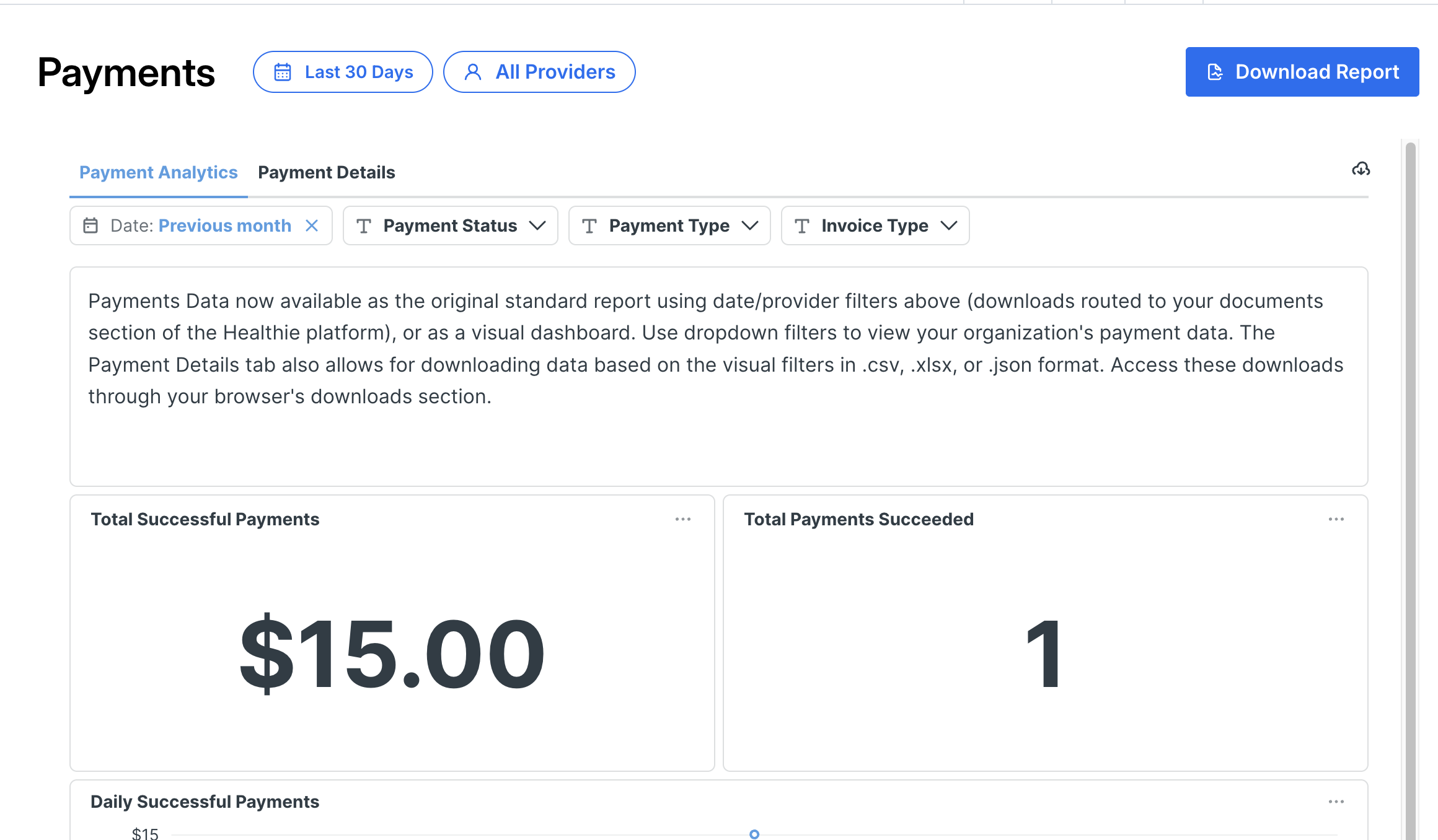
The dashboard is a visual overview that includes two primary components: Payment Analytics and Payment Details.
Payment Analytics is a dashboard of the following metrics:
Total Successful Payments
Total Payments Succeeded
Daily Successful Payments
Status Breakdown
Failed Payments
Success Rate
Billing Frequency
Payment Type Distribution
Payment Details is a table with the following columns for successful and failed payments:
Transaction Date & Time
Transaction Type
Payment Status (not in Payments Report as it includes successful payments only)
Unique ID
Paid By
Current Status
Patient Group
Provider Receiving Payment (details below)
Transaction Initiated By
Patient's Provider (Provider that the patient is assigned to in Osmind)
Original Price
Promo Code
Promo Code Value
Promo Code Discount
Gross Amount Paid
Currency and Payment Method
Item Purchased (pulls a description from invoiced payments)
Billing Frequency and Period
Note
Invoice ID
Gifted
Bank Transfer Type
Bank Transfer Initiated
Bank Transfer Status
Bank Transfer Expected
Tax Charged
Paid By
Payment Type (not in Payments Report)
Invoice Type (not in Payments Report)
The Payment Details raw report can be downloaded as a .csv, .xlsx or .json file by clicking [...] in the top right > Download results > select file type > Download.
Accessing the Payments Report
From your Osmind Dashboard, navigate to Visualize > Payments > select the appropriate filters > Download Report. The Report can be filtered by Date Range and Provider.
The Payments Report consists of only successful payments, and contains the same columns as the Payment Details table above with the addition of:
Stripe Fee
Net Amount Received
Failure Reason
Once the report is generated it will appear in the Documents tab > Generated Reports folder, titled by the report name and date.
Note: This report can be run for individual providers, a select group of providers, or for an entire organization.
Understanding the Key Dashboard Metrics
Provider Receiving Payment
This data point reflects the provider who will get paid for the service. The recipient can be selected via the package link that's shared, or the Provider dropdown when you input a charge from the provider's side.
Unique ID vs. Invoice ID
Unique ID is the patient's (person who paid) user ID, while the Invoice ID is the number from the associated payment record.
Gross Amount Paid vs. Net Amount Received
Gross Amount Paid is the total amount charged to the patient, while the Net Amount Received is what the provider actually receives after subtracting any Stripe fees.
Filtering Options
The Payments Dashboard (Details and Analytics) can be filtered by:
Date Range: Select custom date ranges to analyze payment data over specific time periods. This allows you to track trends over time, compare different periods, or focus on recent insights. A date range must be selected to view payments.
Payment Status: Filter by successful or failed payments to understand payment completion rates, identify issues affecting transaction success, and monitor overall payment health.
Payment Type: Filter by payment method (e.g., credit card, ACH, wire transfer, digital wallet) to analyze which payment types are most commonly used and identify any method-specific trends or issues.
Invoice Type: Filter by invoice category (manual invoice, no invoice, or scheduled payment) to segment your payment data by billing model and better understand revenue streams.