Link Patient Accounts to Indicate Relationship
Last updated: February 3, 2026
Osmind lets you link multiple patient accounts together so that relationships — like parent/child or siblings — are clearly indicated in your system. This makes it easier to manage family care, coordinate notifications, and view connected patient records when working with households or caregivers.
Why Link Patient Accounts
Linking patient accounts is especially useful when:
Multiple family members receive care
Parents or guardians manage care for minors
Siblings share appointments or services with the same provider
You want a clear view of family relationships inside Osmind
Once linked, these relationships are visible in patient profiles and can help streamline workflows involving shared families.
How to Link Patient Accounts
Navigate to a Patient Profile for the patient you want to link.
Go to Actions > Client Info > Family and Contacts > Link Client Account
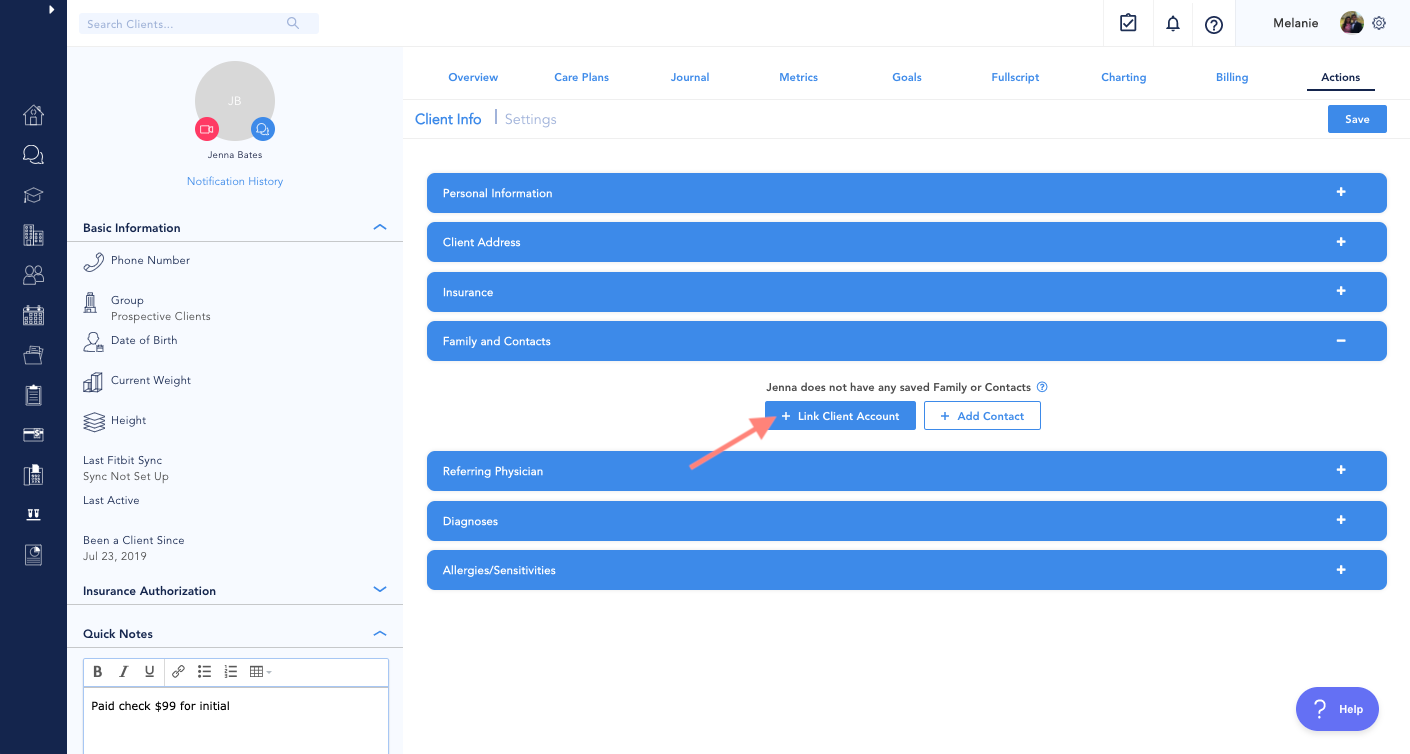
Search for the patient you want to link (e.g., a parent, guardian, or sibling).
Select the appropriate relationship type (e.g., Parent, Child, Sibling).
Option to make contact an Emergency Contact
Option to send email notifications related to Original Patient: this will ensure that any automatic emails that send from the Osmind platform (ie. appointment confirmations, reminders, invoices, etc) will be duplicated and sent to the email address of the linked patient.
Option to provide full personal access to original patient portal.
If you select this, the linked patient will receive an invite email with a link to access the original patient’s account.
When the linked patient receives access to the the original patient’s account, they will see a “Switch Account” option when they log in to their own account.
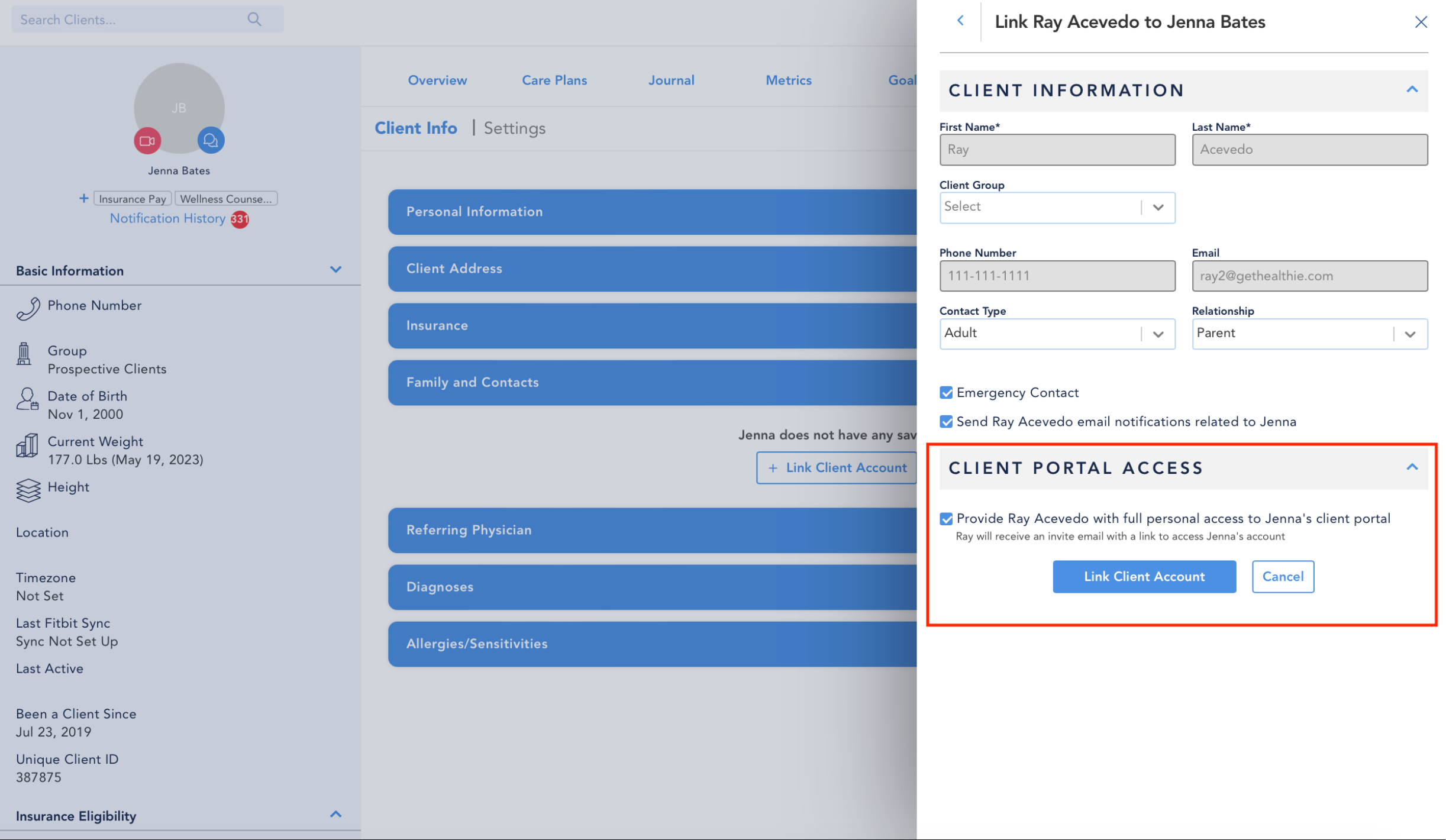
Once saved, the linked relationship will appear on both patient profiles so you can easily navigate between related accounts in Osmind.
What Happens After Accounts Are Linked
After linking:
The relationship (e.g., Parent, Child) appears on both patient profiles
Staff and providers can quickly jump between linked accounts
Family structures are visible in profile views and reporting
Appointments, billing, and clinical records remain separate per patient account
Linking accounts does not merge medical records or financial data.
Manage or Remove Linked Accounts
You can update or remove linked patient relationships at any time:
Open the Primary Patient’s Profile.
Go to Actions > Client Info > Family and Contacts
Click the [...] next to the contact
Select Remove Linked Client Account or Edit
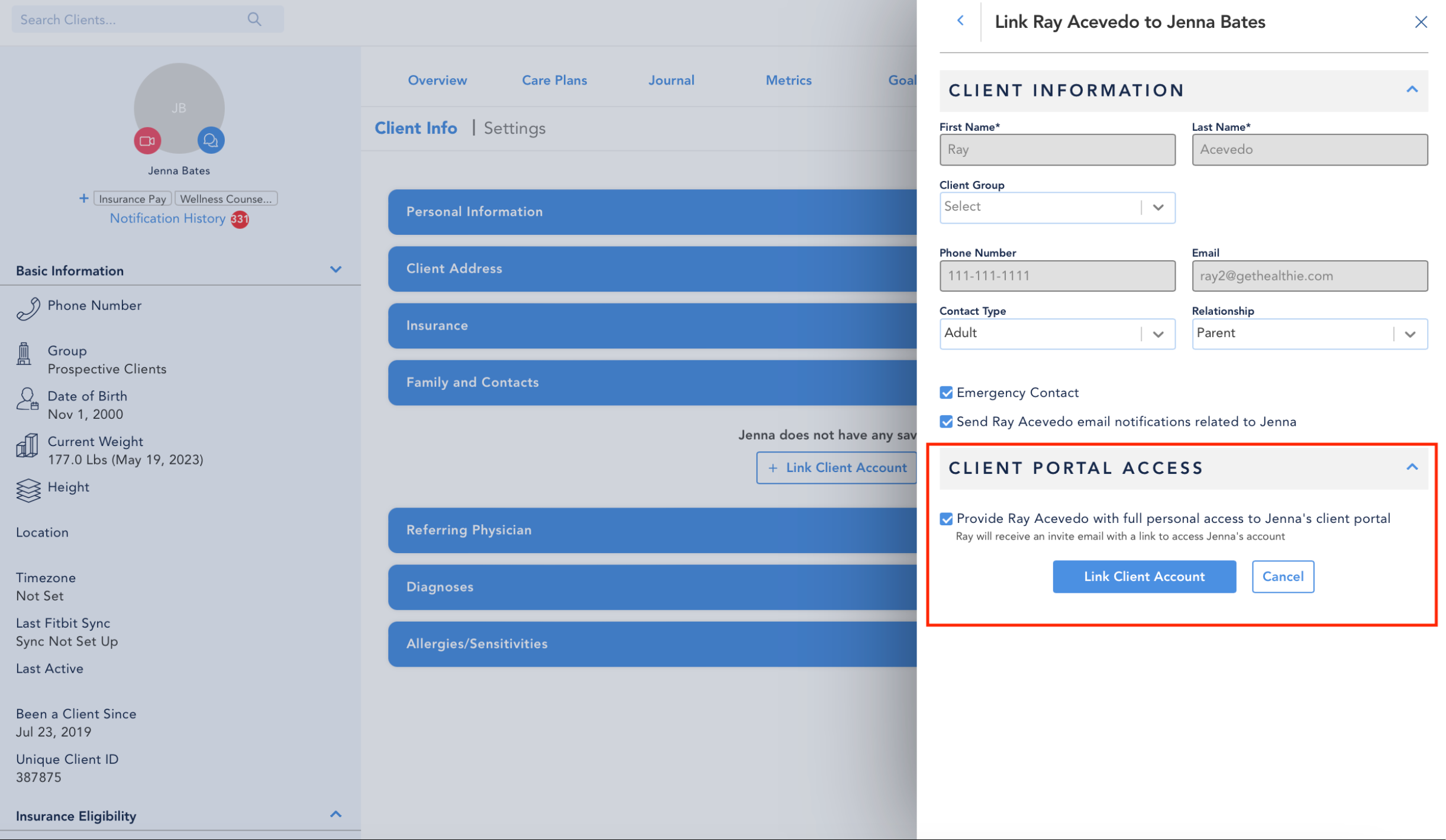
Unlinking removes only the relationship — it does not delete any patient account.
Best Practices
Clearly define relationships (e.g., Parent vs. Guardian) to avoid confusion
Use linked accounts to support pediatric and caregiver workflows
Periodically review linked families to ensure relationships remain accurate
Keep billing and clinical data separate, even when accounts are linked