Schedule Appointments
Last updated: February 5, 2026
Osmind allows providers and staff to schedule appointments directly from the calendar or patient profile. Appointments can be scheduled for individual patients or groups, and can be configured for in-person or telehealth sessions.
This article walks through how to schedule appointments in Osmind and explains key scheduling options.
Scheduling an Appointment from the Calendar
Navigate to the Calendar from the left-hand menu.
Click on the date and time you would like to schedule an appointment.
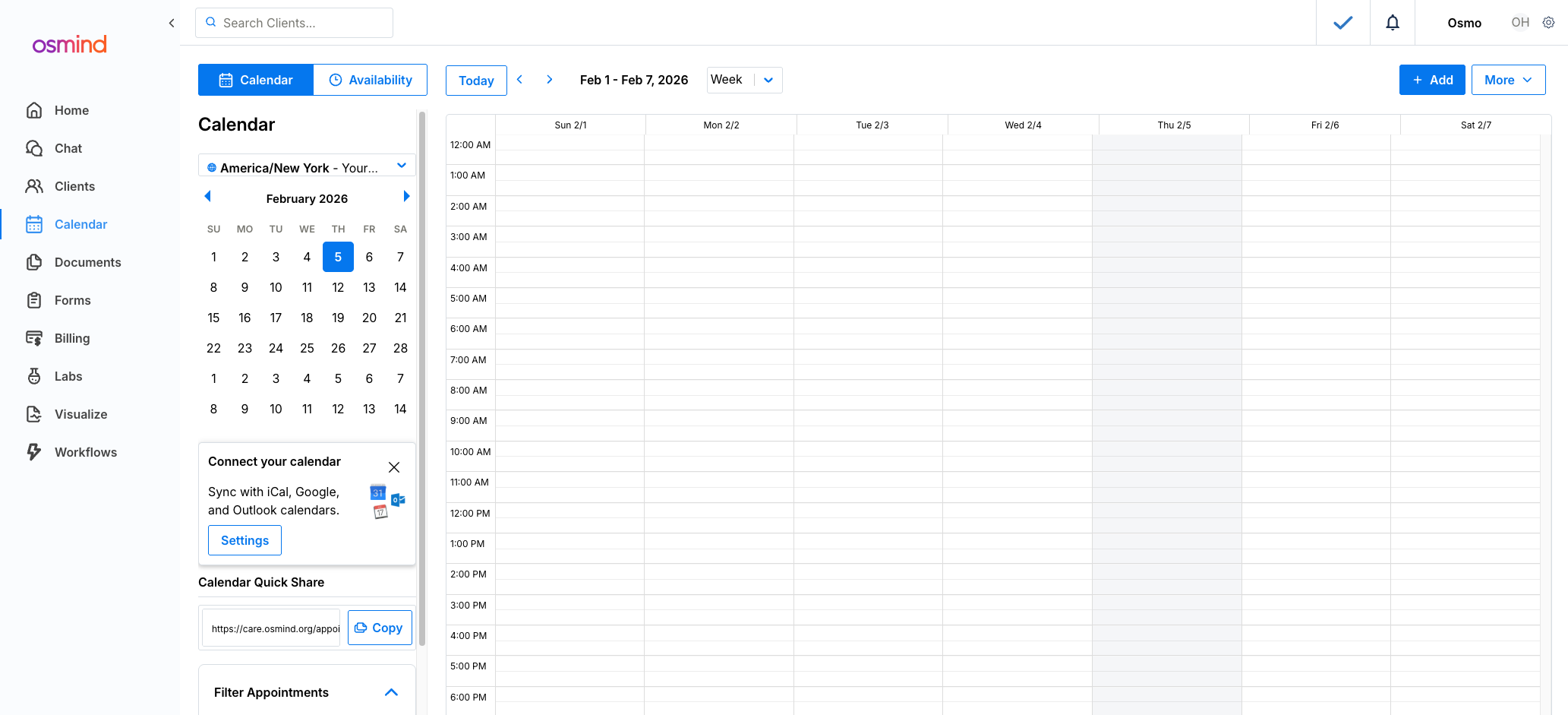
Select the appropriate Appointment Type from the dropdown.
Select the Provider for the appointment.
Search for and select the Patient.
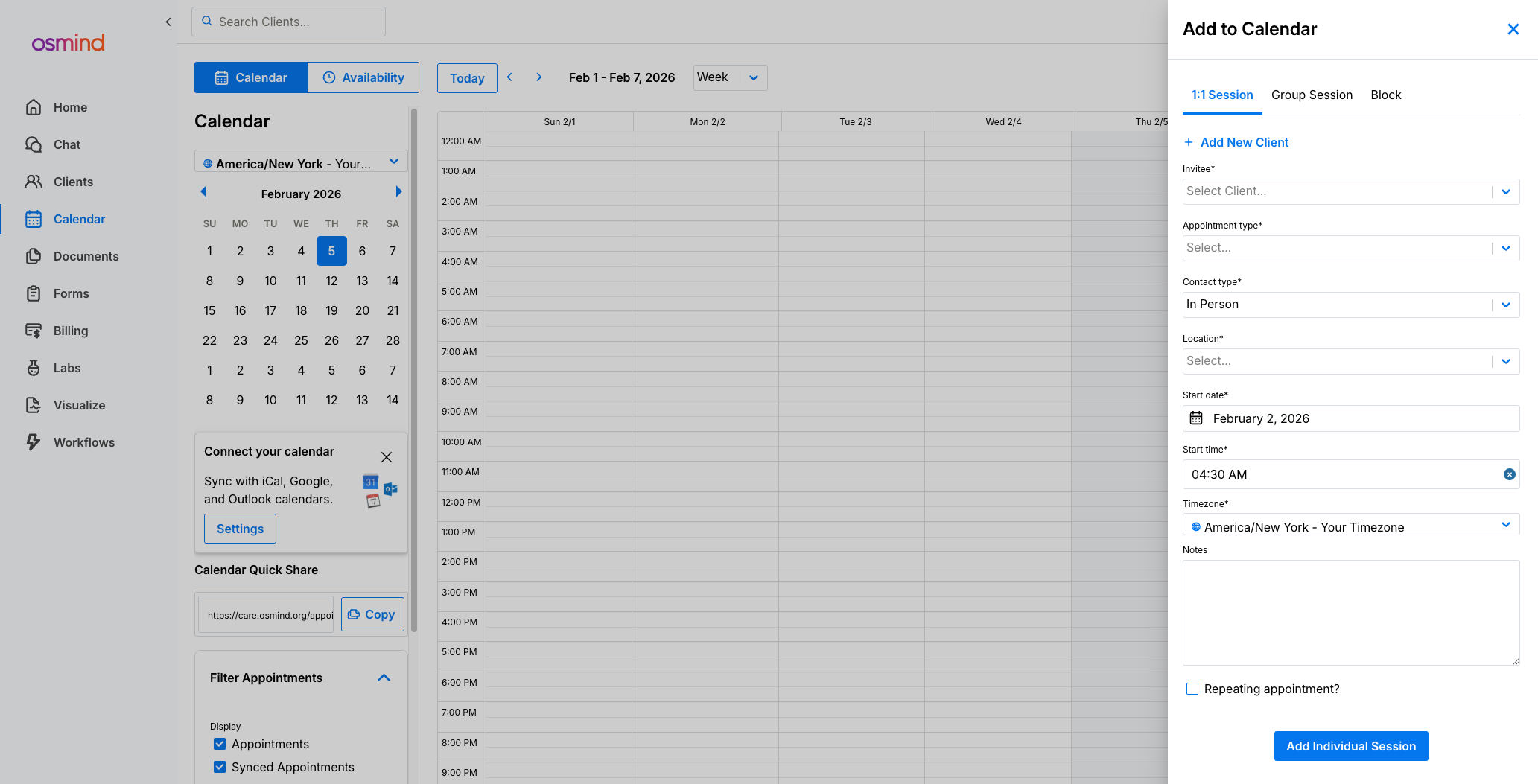
Confirm or edit the appointment date, start time, and duration.
Click Save to schedule the appointment.
Scheduling an Appointment from a Patient Profile
You can also schedule appointments directly from a patient’s profile.
Navigate to Patients and select the patient.
Click Schedule Appointment.
Choose the Appointment Type, Provider, and Date/Time.
Click Save.
The appointment will now appear on the calendar.
Appointment Details & Configuration Options
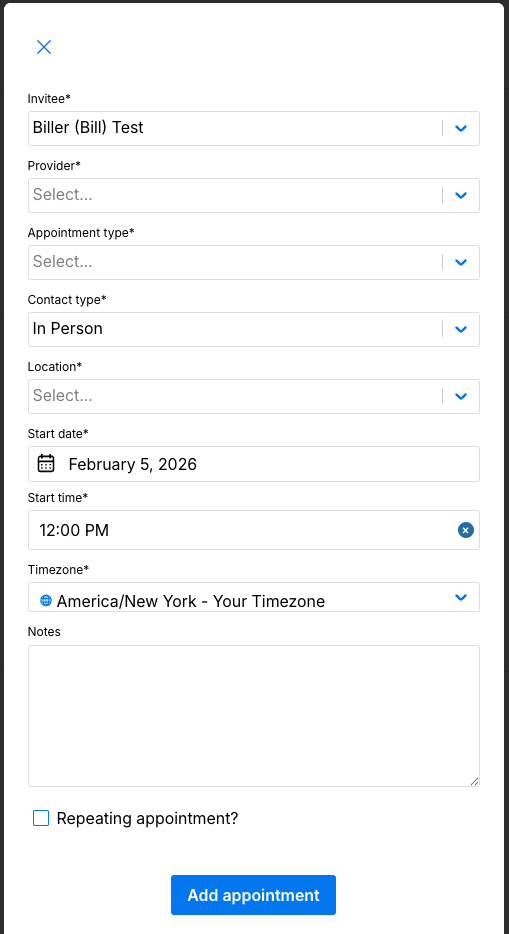
When scheduling an appointment, you may see the following configurable fields:
Appointment Type – Determines duration, pricing, and form automation
Provider – The provider assigned to the session
Location – In-person or telehealth
Notes – Internal notes visible to staff and providers
Status – Scheduled, occurred, canceled, or no-show
Telehealth Appointments
If the appointment type is configured for telehealth:
A telehealth link is automatically generated
The link appears in the appointment details
Patients can access the link from their portal
Group Appointments
If the selected appointment type is a group appointment:
Multiple patients can be added to the same time slot
Capacity limits are enforced based on appointment type settings
Billing and documentation remain separate per patient
Editing or Rescheduling an Appointment
To edit an existing appointment:
Click on the appointment on the calendar.
Select Edit Appointment.
From here, you can:
Change the date or time
Update the provider
Add or remove patients (for group appointments)
Modify notes
Click Save to apply changes.
Canceling or Deleting an Appointment
Click the appointment on the calendar.
Select Cancel or Delete, depending on your workflow.
Canceled appointments may trigger cancellation policies, late-cancel charges, or no-show workflows depending on your settings.
Appointment Statuses
Appointments can have the following statuses:
Scheduled
Occurred
Canceled
No Show
Marking an appointment as Occurred may trigger billing, credit usage, or form automation depending on your configuration.
Best Practices
Confirm appointment type settings before scheduling
Use appointment-based form automation to reduce manual follow-up
Review telehealth links before sessions begin
Mark appointments as occurred promptly to ensure billing workflows run correctly
Summary
Scheduling appointments in Osmind can be done directly from the calendar or patient profile. With flexible appointment types, telehealth support, and group scheduling options, practices can manage sessions efficiently while keeping patient records and billing workflows accurate.