Connect Multiple Practices to Google Calendar
Last updated: April 27, 2026
Before going starting this process, please reach out to Support via chat or contact your Customer Success Manager to have them turn on the multi-org Google Calendars feature.
This step-by-step guide will help you sync your Osmind calendar to your personal Google Calendar. This is also the step-by-step for providers active in more than one Osmind practice. This will ensure the provider isn't double-booked when working for two or more locations.
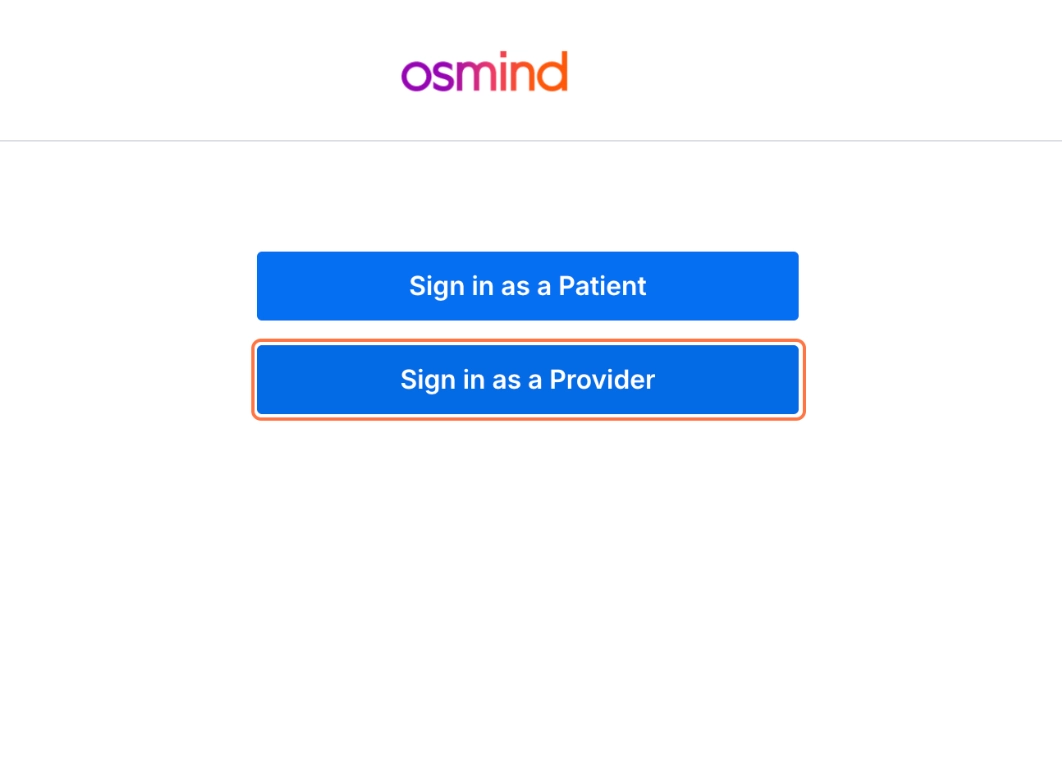
1. Go to care.osmind.org and click on Sign in as a Provider
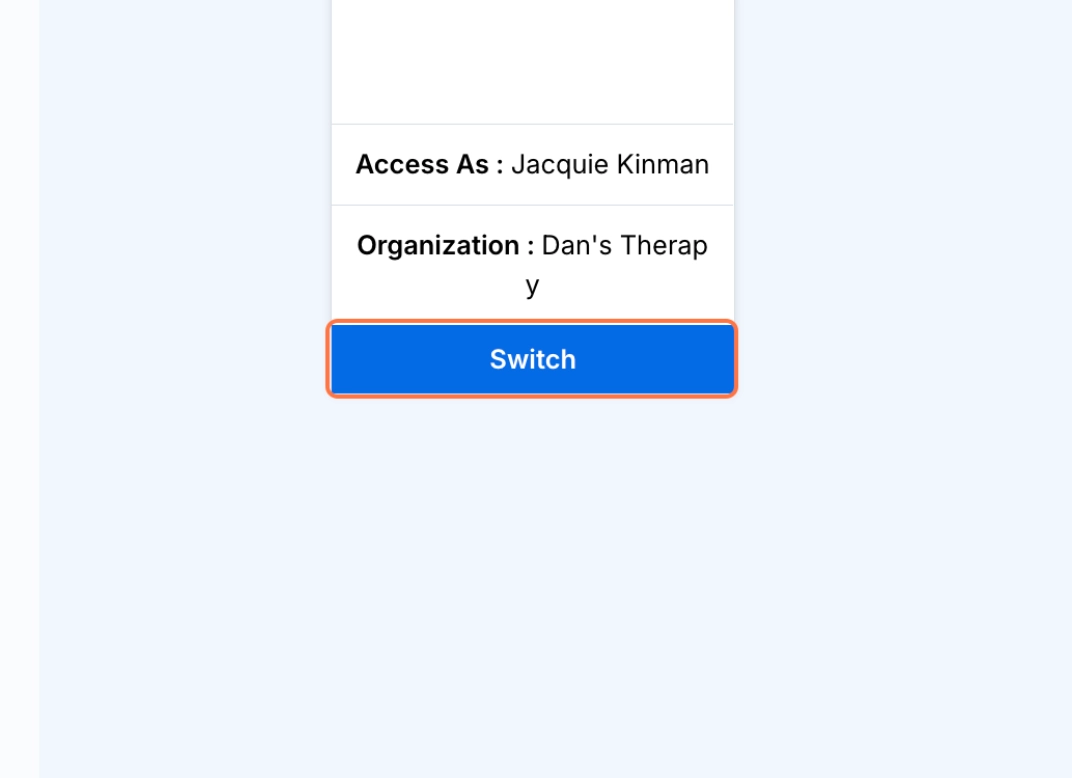
2. Click "Switch" for your first practice that you're active in
In this example, it is Dan's Therapy.
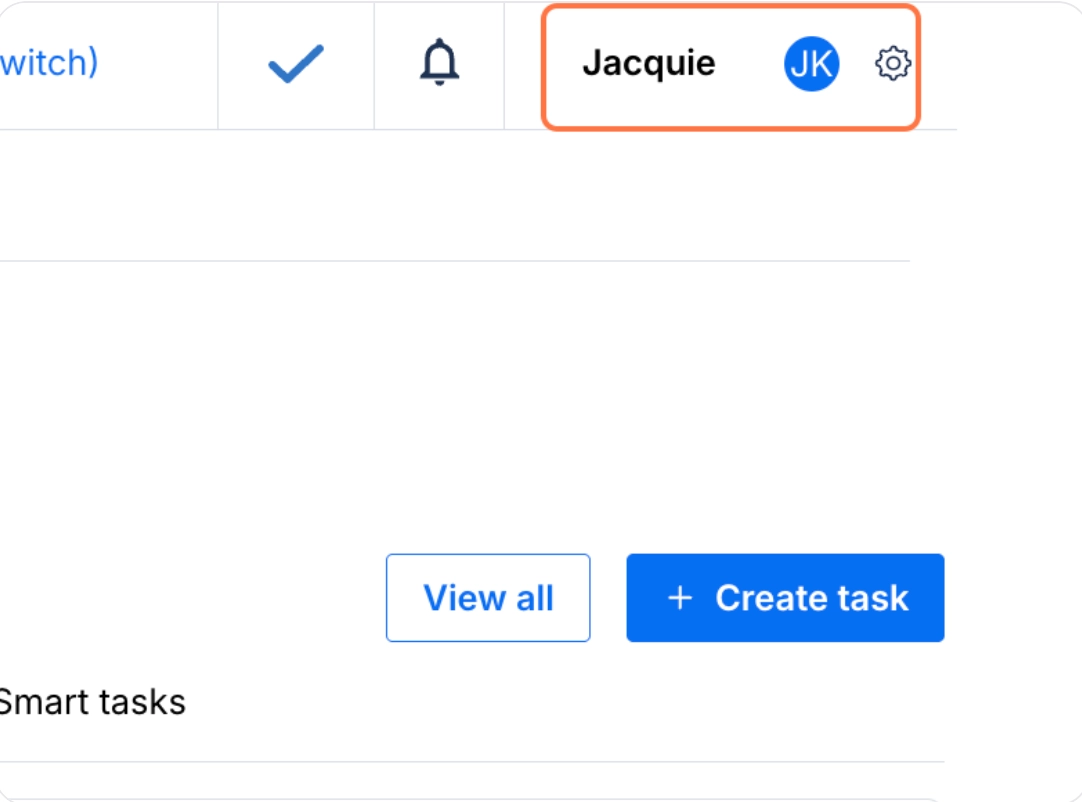
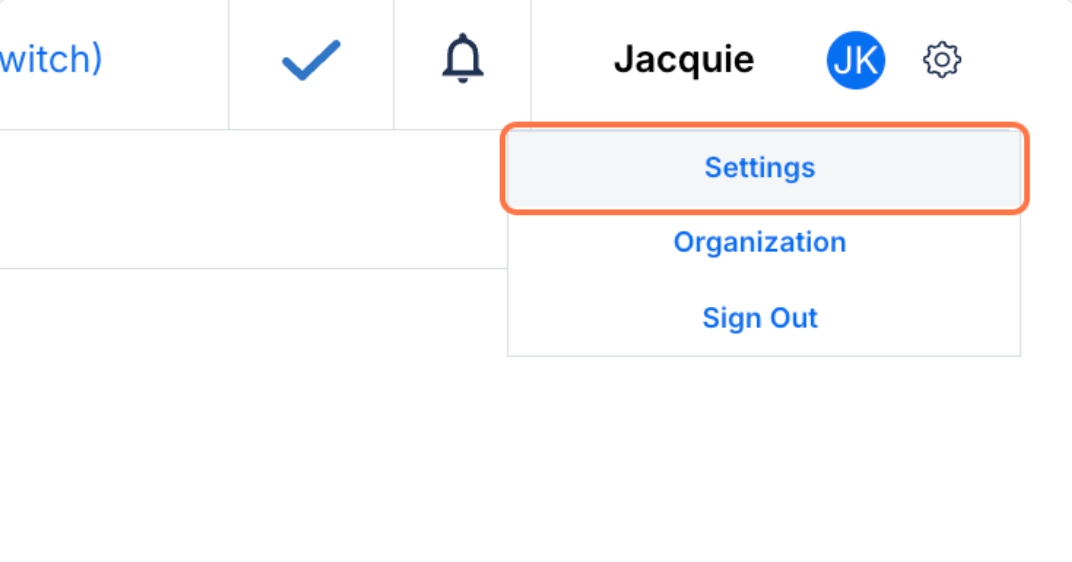
3. Once you're in the first practice, click the Gear icon in the top right corner.
4. Click on Settings
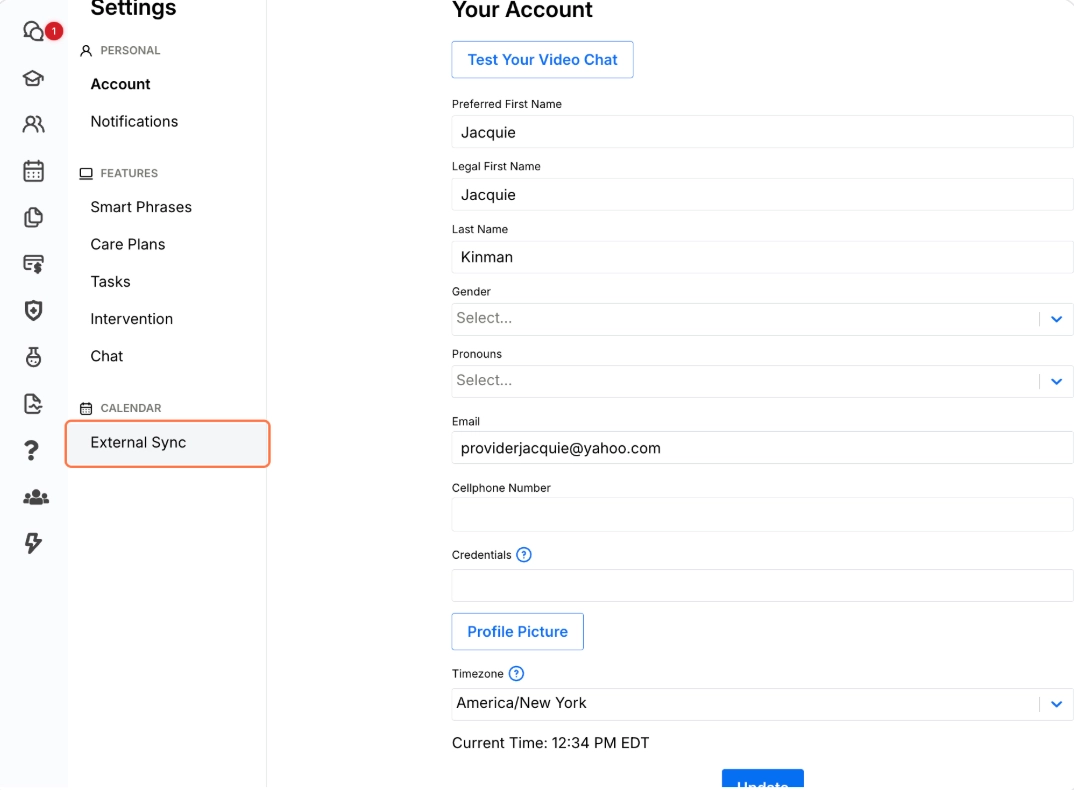
5. Under Calendar, click on External Sync
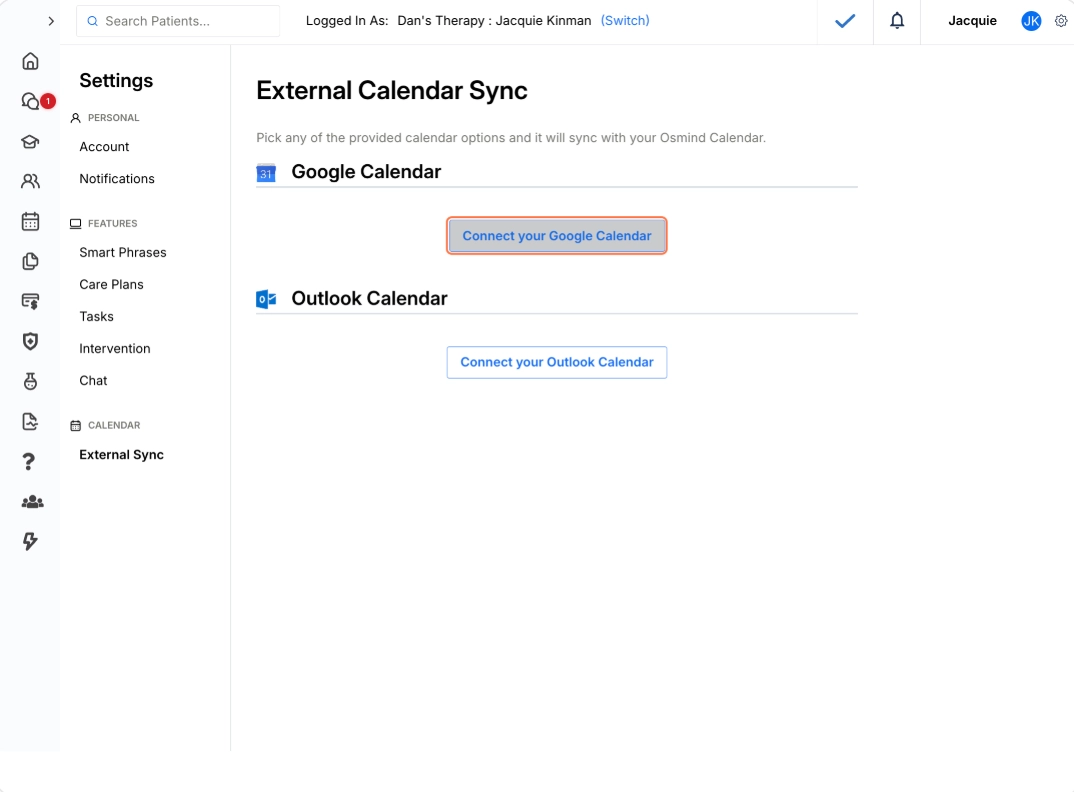
6. Click on Connect your Google Calendar
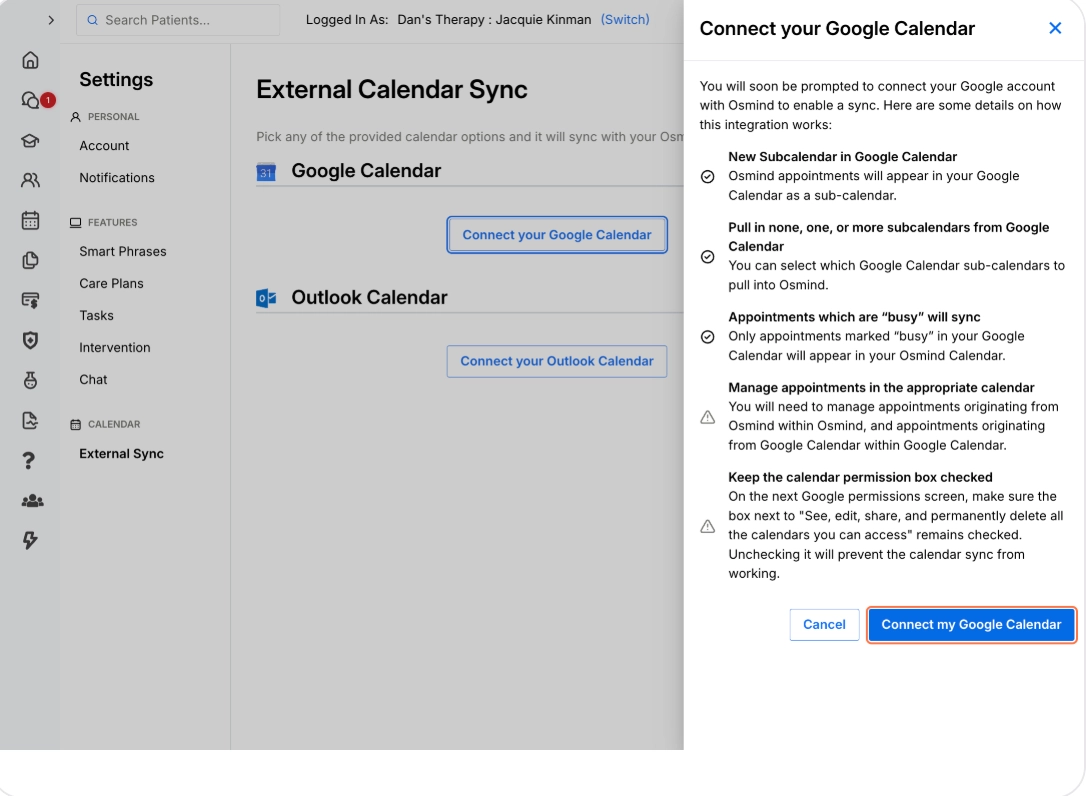
7. Click on Connect my Google Calendar
8. Select the Google Account you would like to connect the calendar to
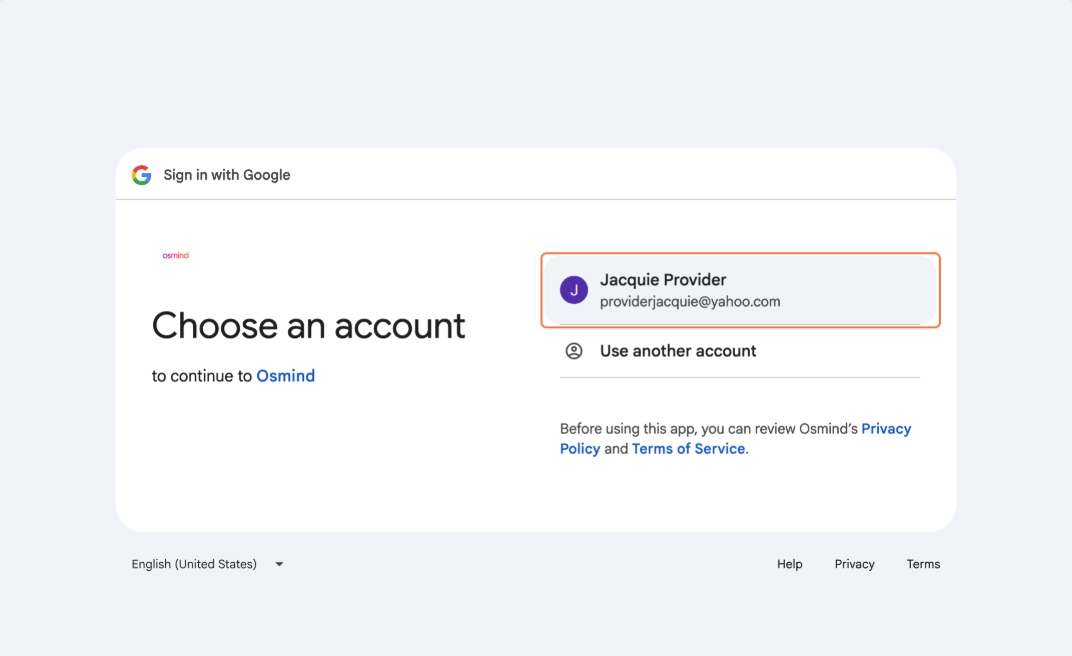
9. Click on Continue
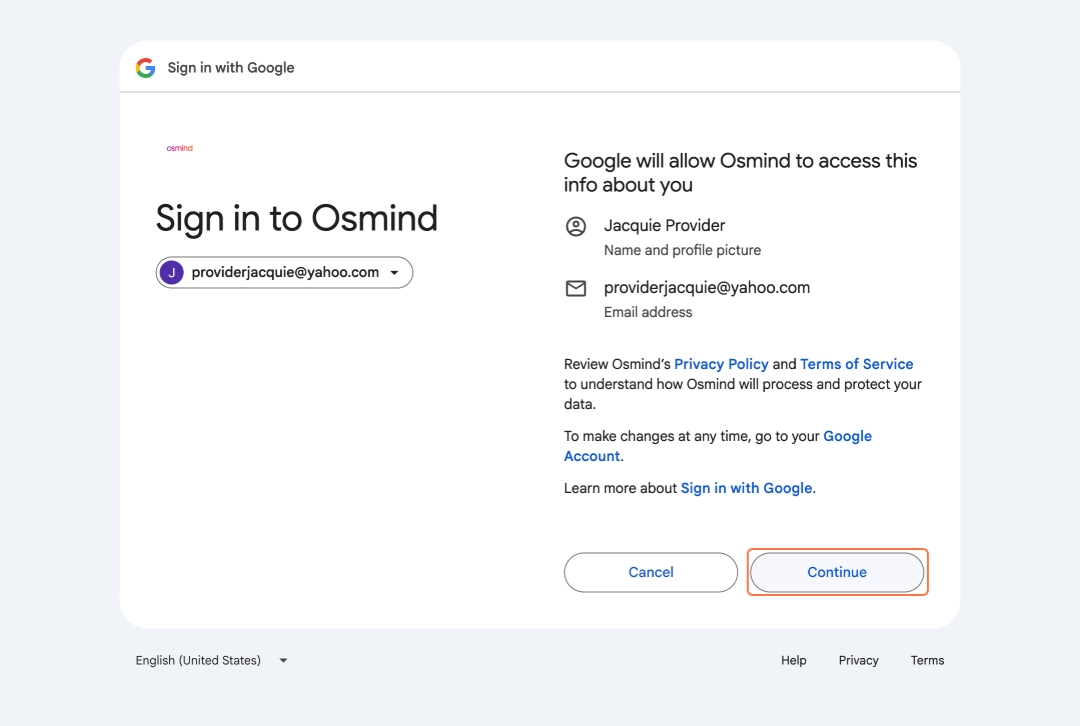
10. Click the checkbox to check the See, edit, share, and permanently delete all the calendars you can access using Google Calendar.
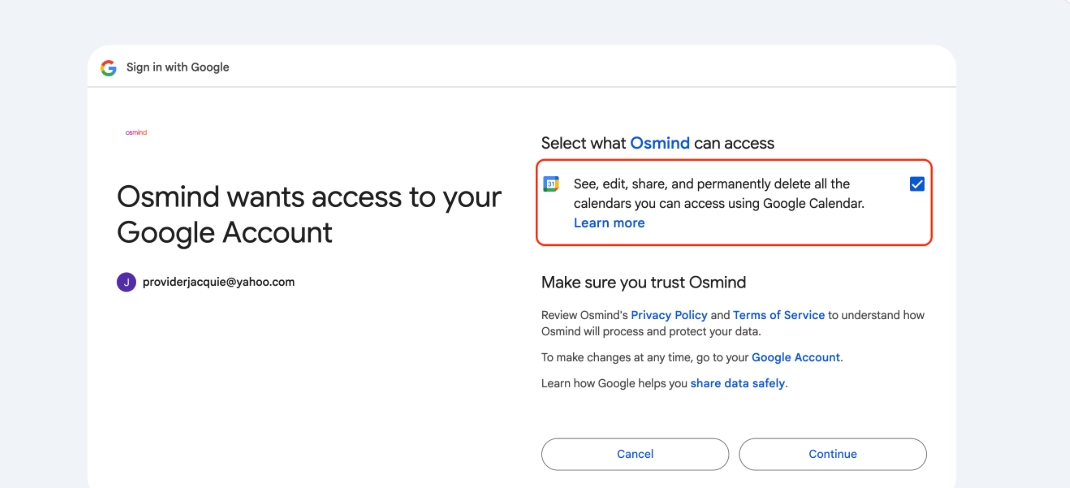
11. Click on Continue
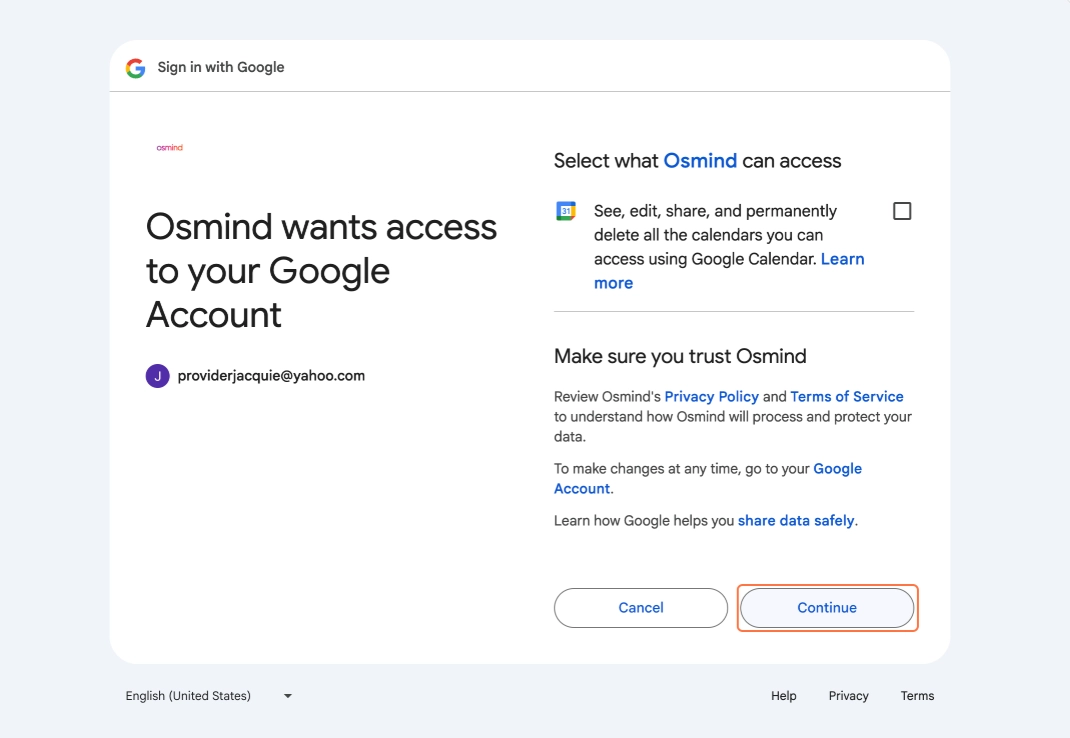
12. Choose the Google Calendars which will appear in Osmind's Calendar.
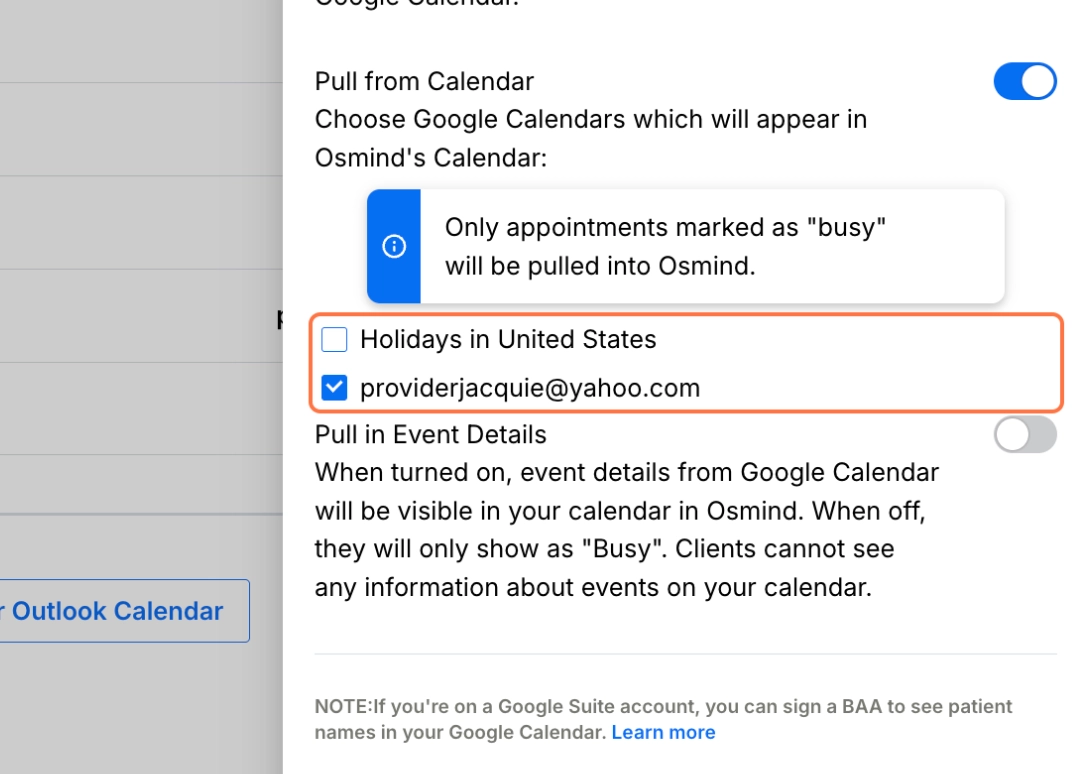
13. Osmind will confirm when the calendars are connected.
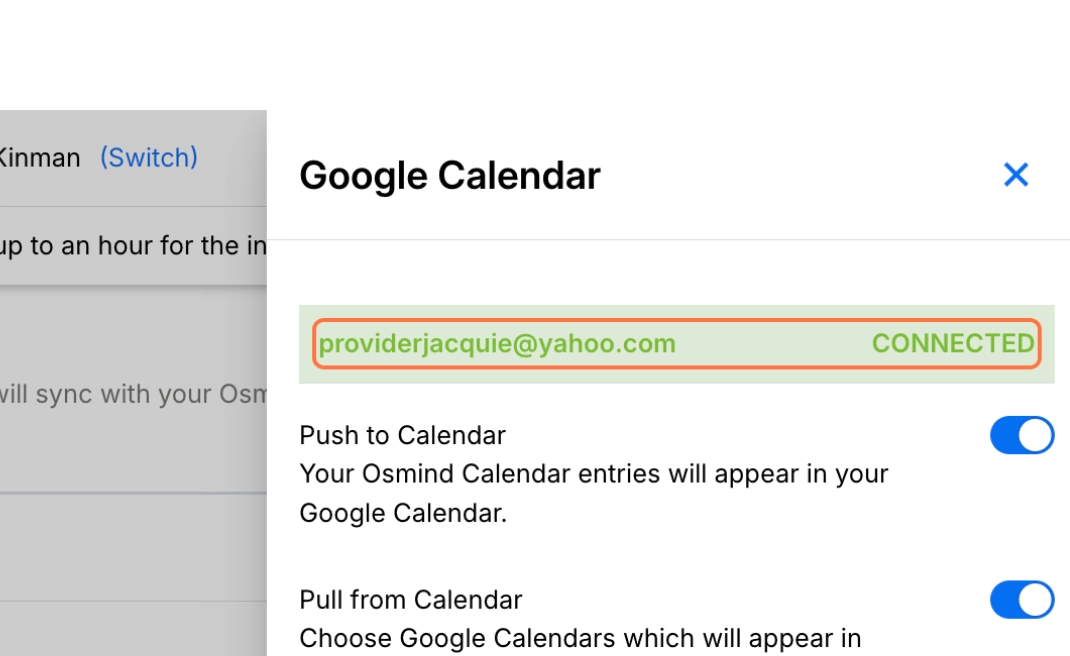
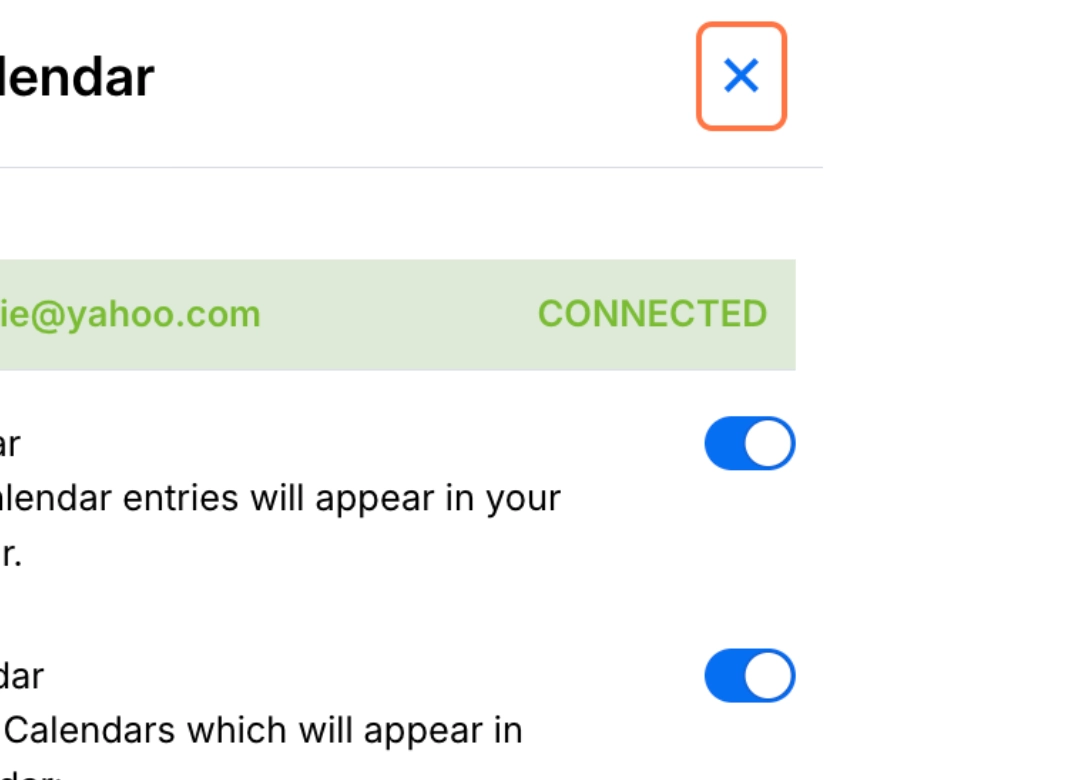
14. Click on Close
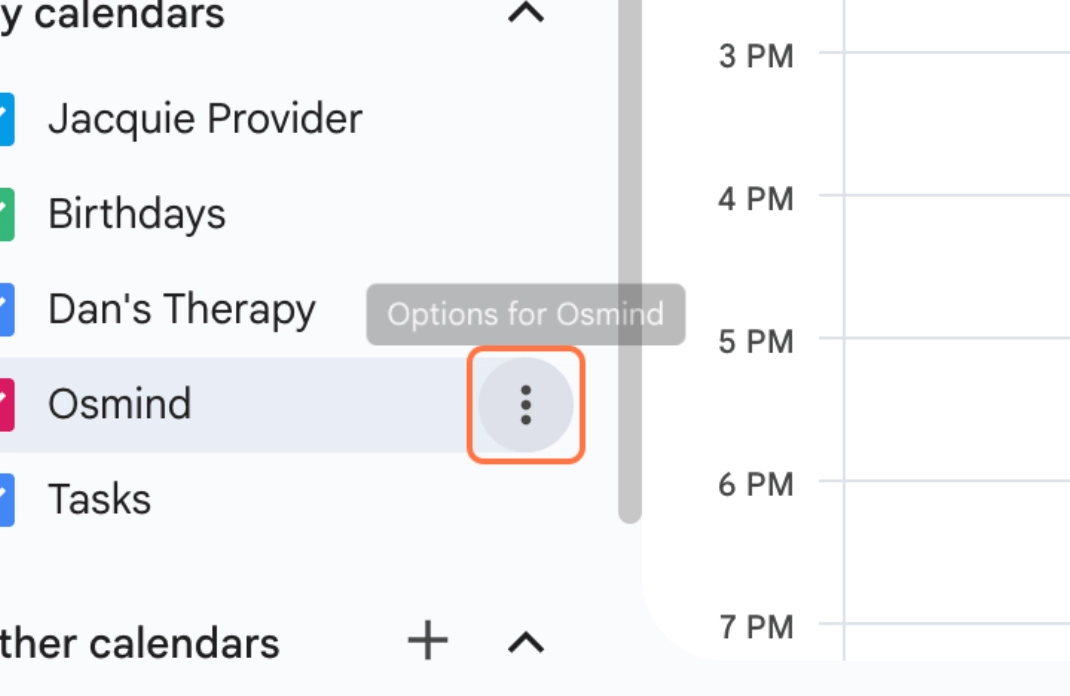
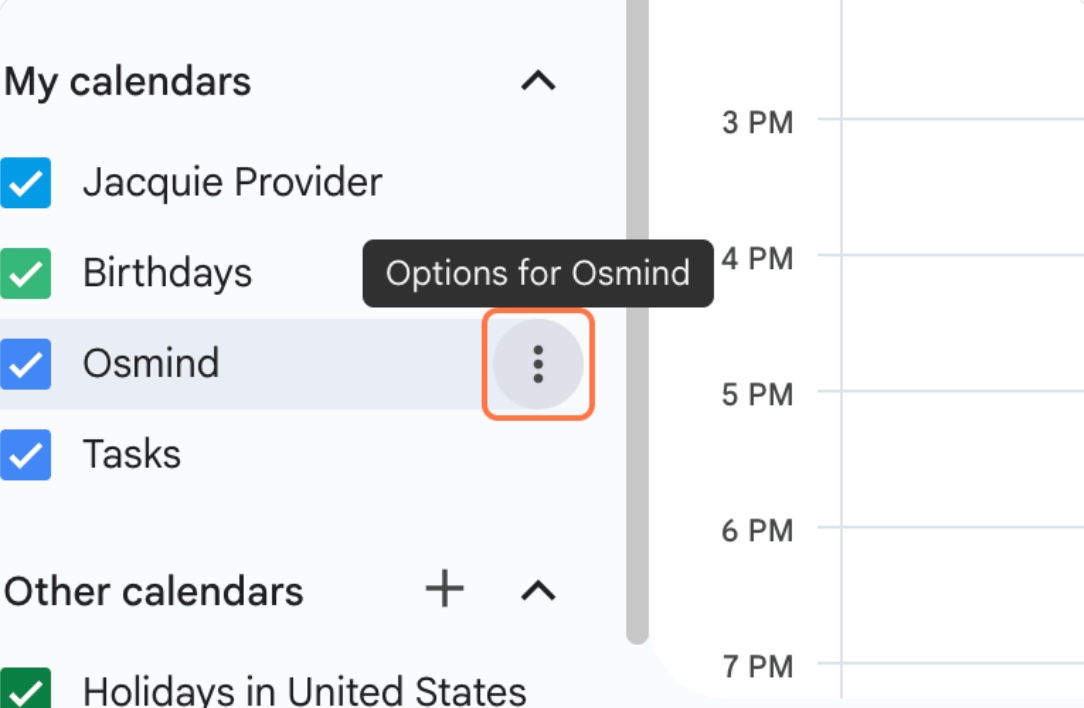
15. Go to your Google Calendar. On the left side tab under your My calendars, find Osmind
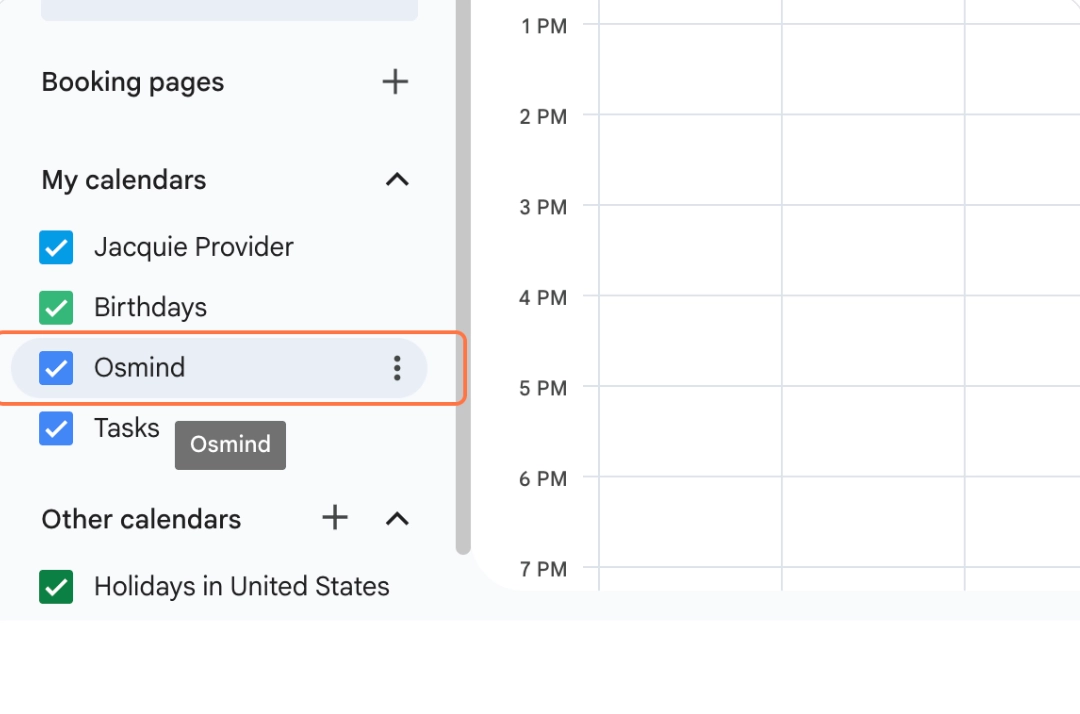
16. Click on Options (3 dots) for Osmind
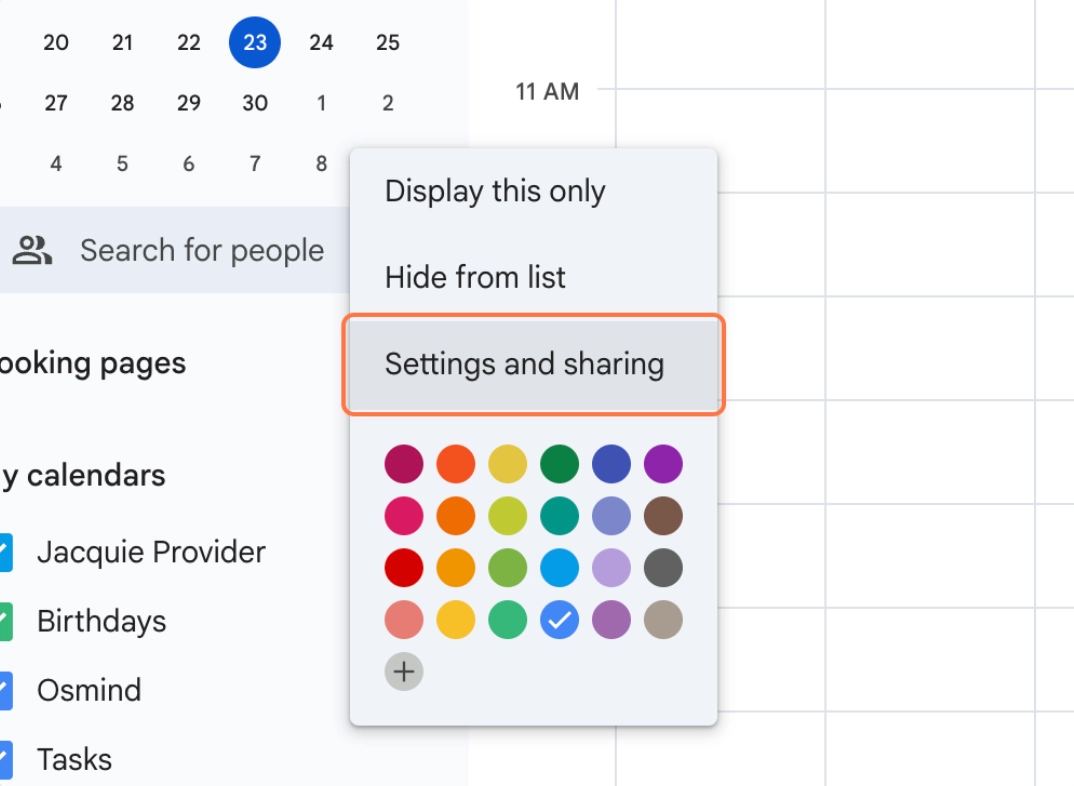
17. Click on Settings and sharing
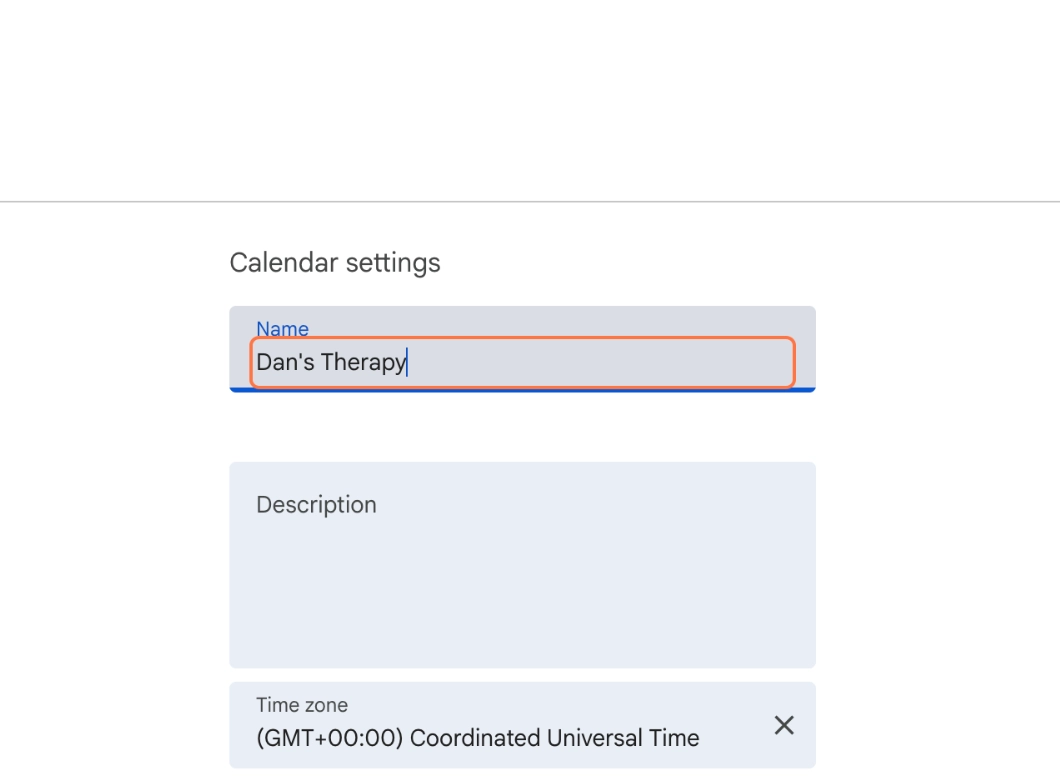
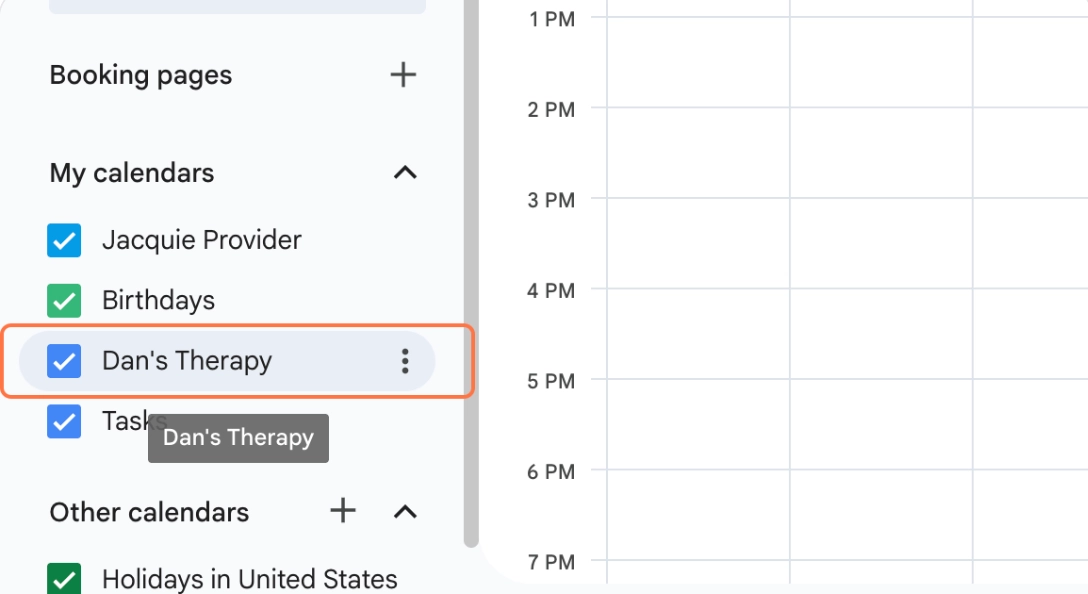
18. Type in the first practice location name
You have to rename it. There cannot be two calendars with the same name in your Google Calendar. The calendar integrates with the initial name "Osmind," but you have to rename it or it won't integrate if there's already an Osmind calendar in your Google Calendar.
You have to rename it. There cannot be two calendars with the same name in your Google Calendar. The calendar integrates with the initial name "Osmind," but you have to rename it or it won't integrate if there's already an Osmind calendar in your Google Calendar.
19. Click on Go back
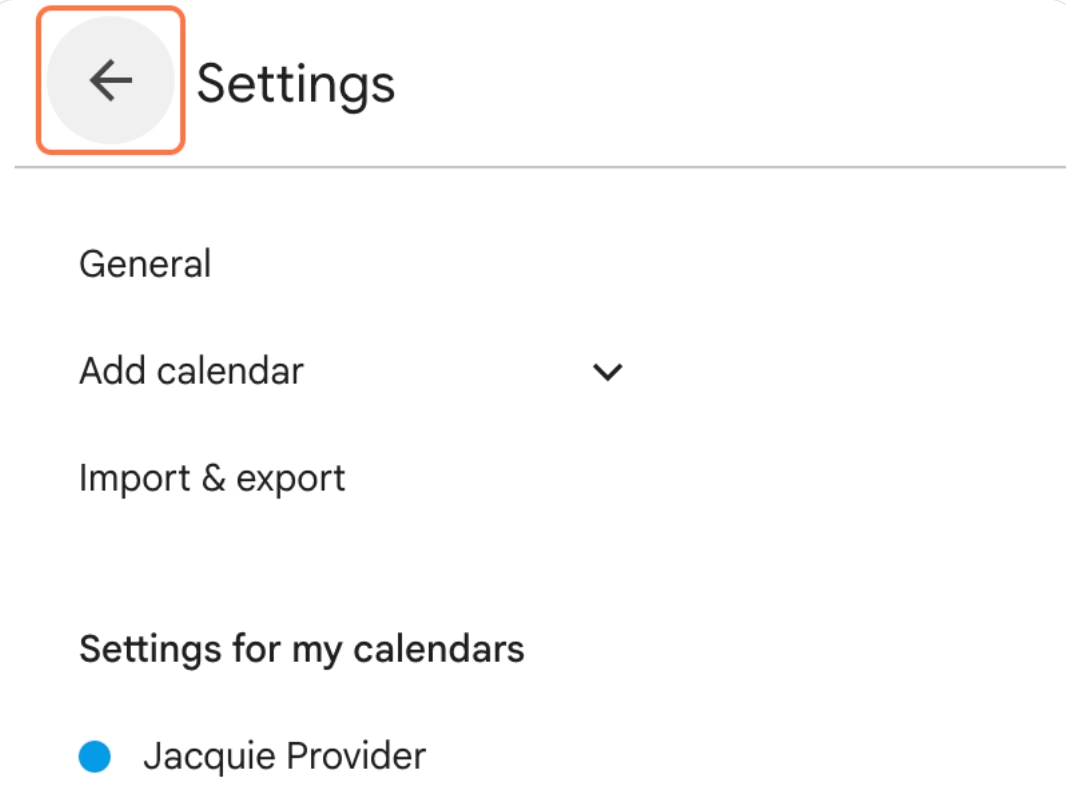
20. The name update should reflect immediately
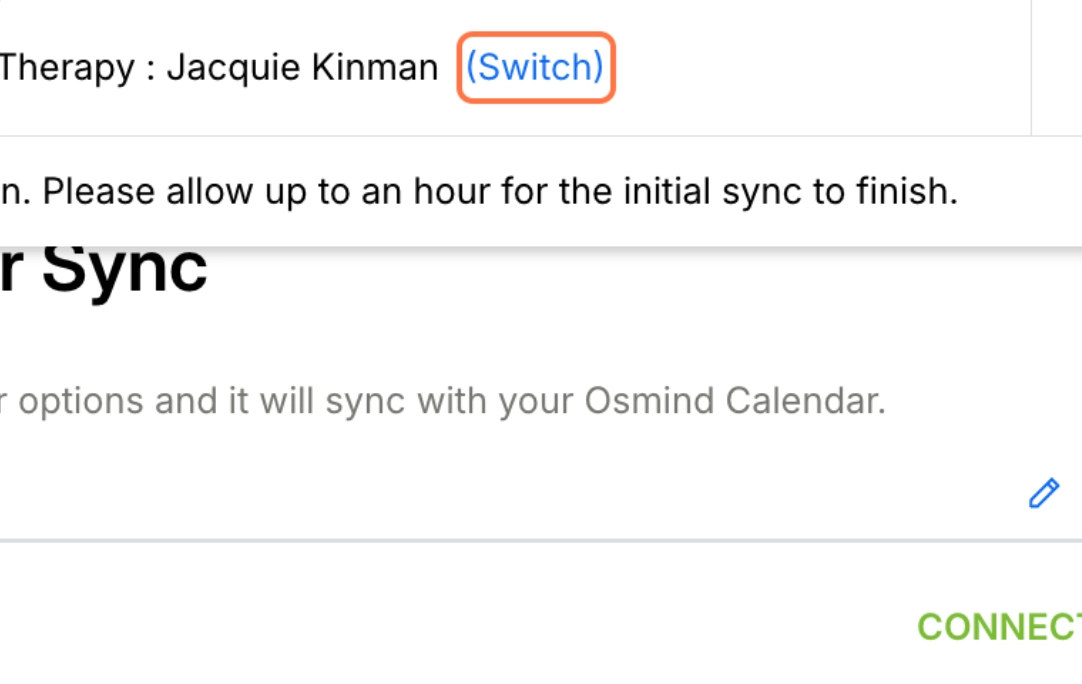
21. Go back to Osmind (care.osmind.org) and click on (Switch) at the top of your screen
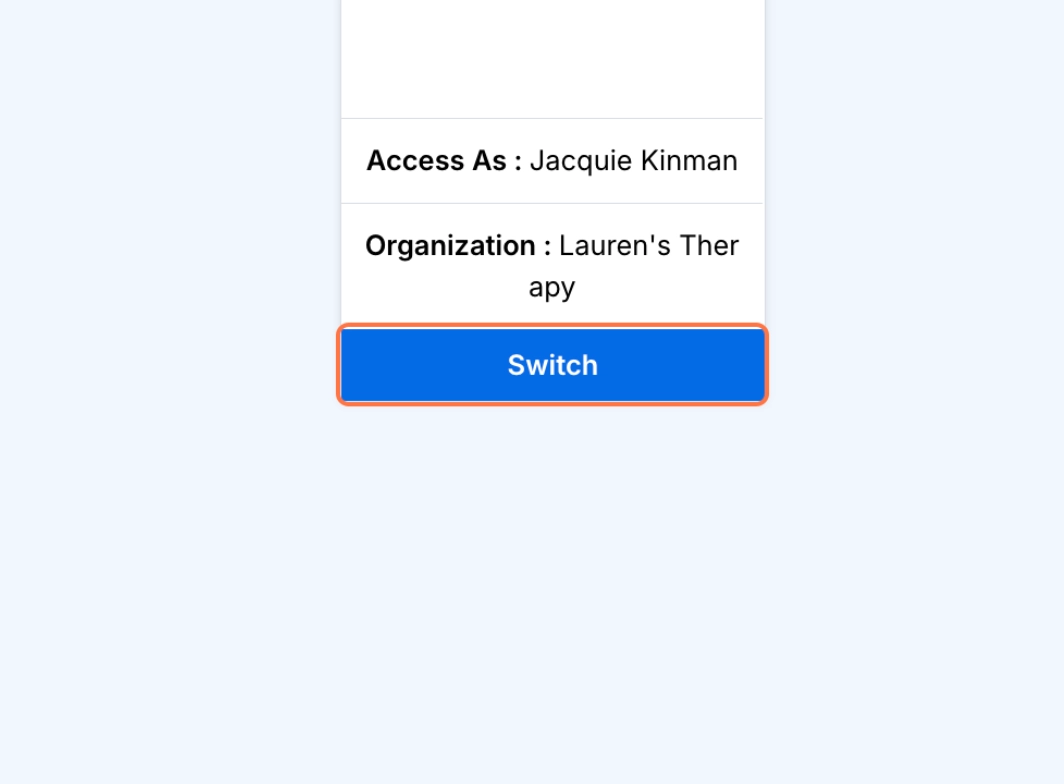
22. Click on Switch on your second practice
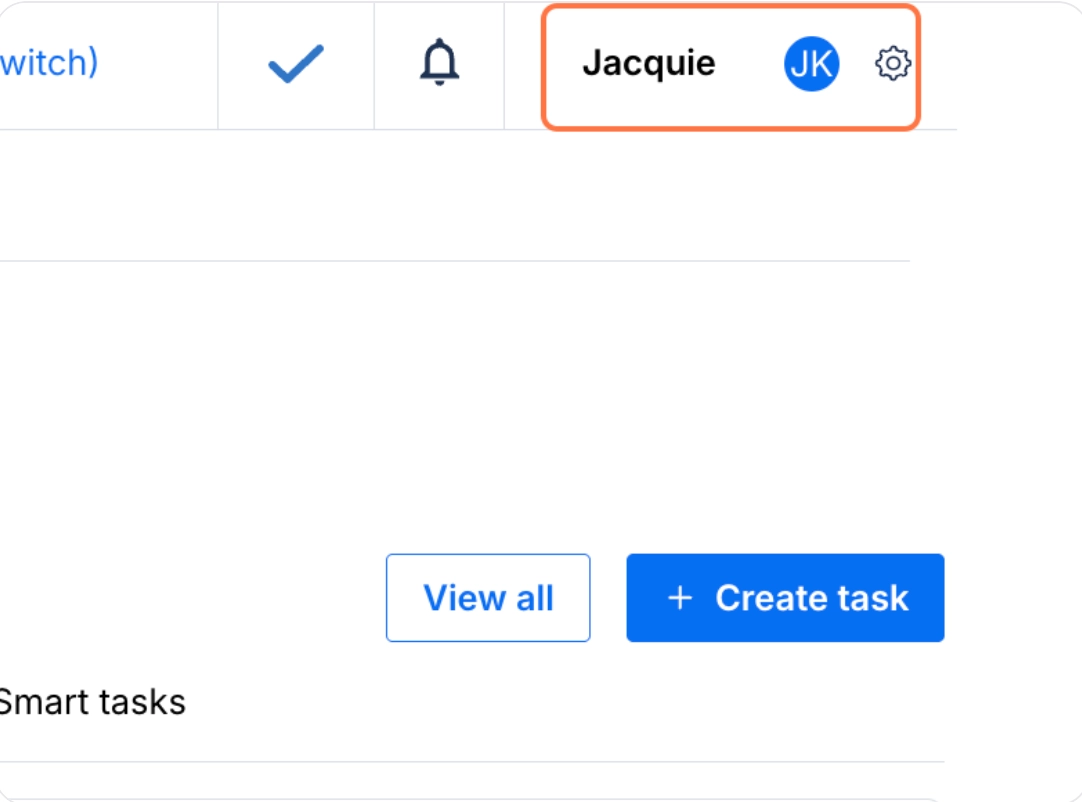
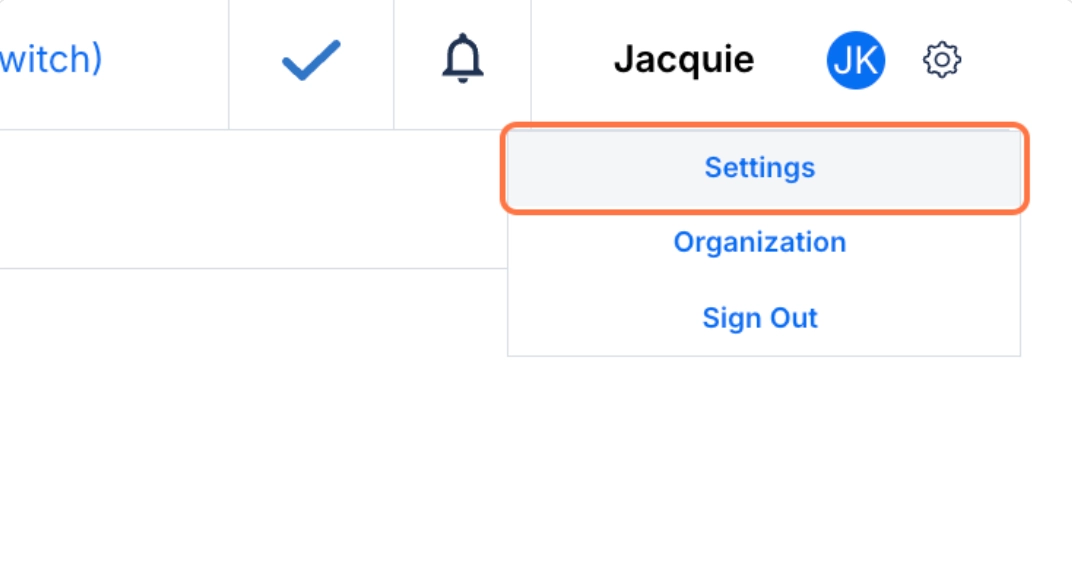
23. Once you’re in the second practice, click the Gear icon in the top right corner
24. Click on Settings
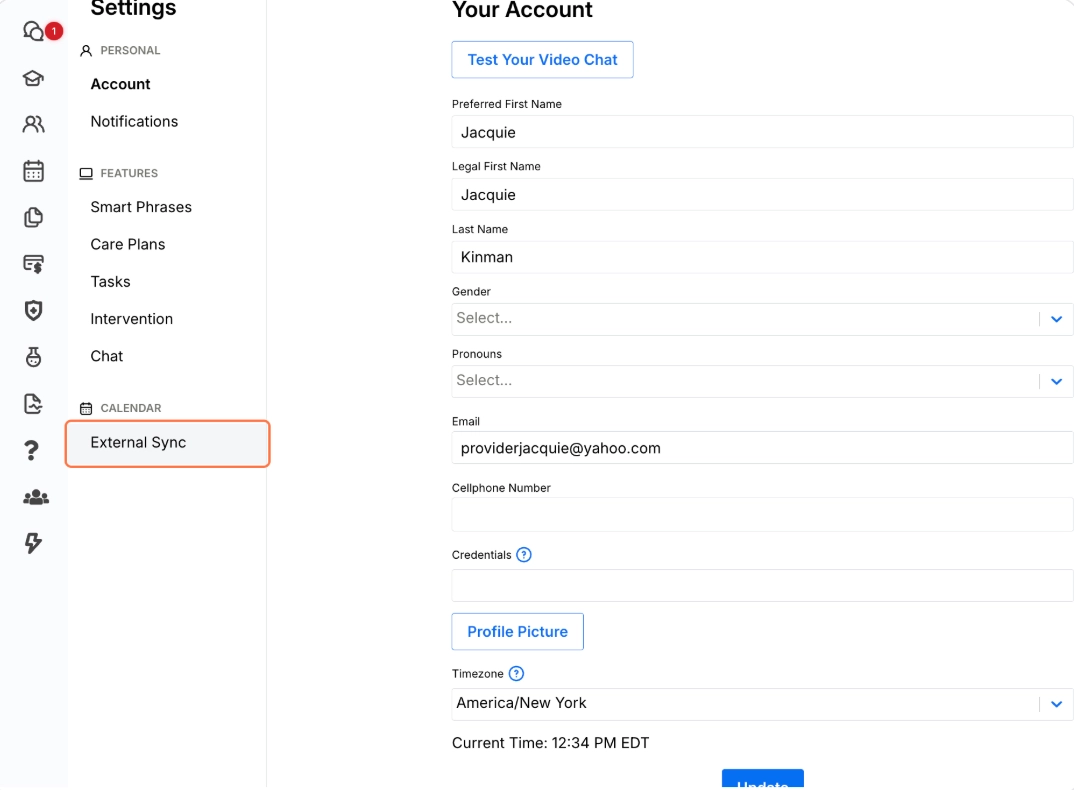
25. Under Calendar, click on External Sync
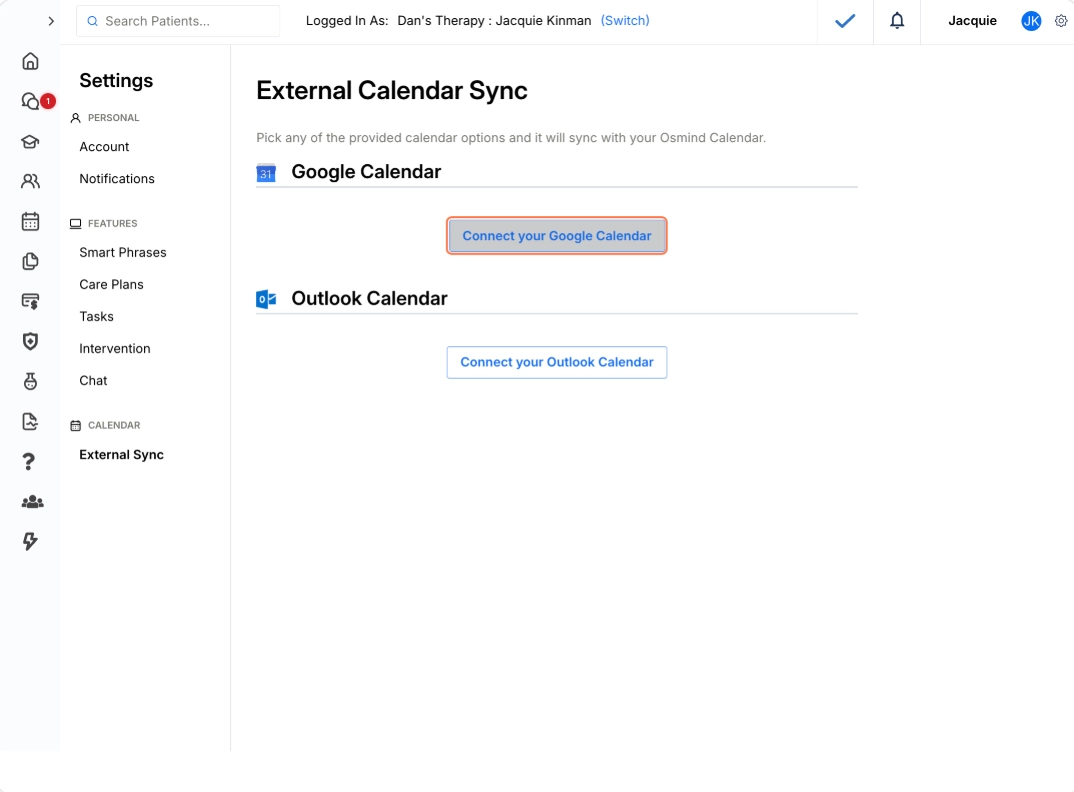
26. Click on Connect your Google Calendar
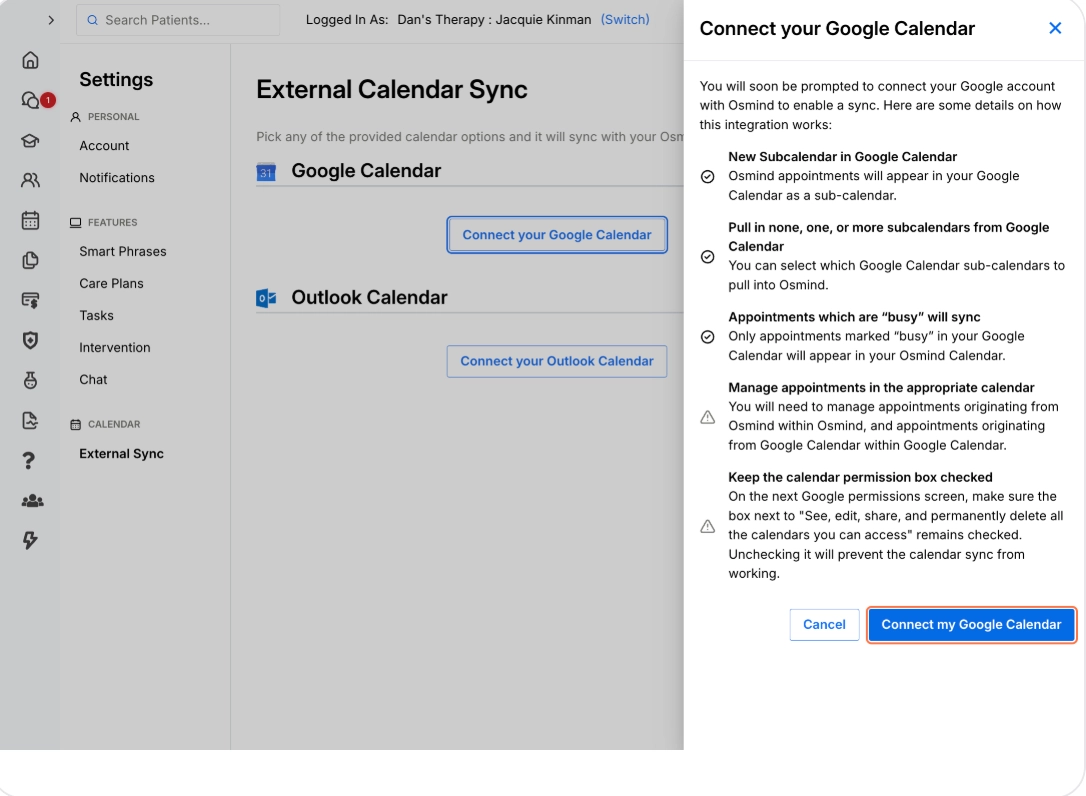
27. Click on Connect my Google Calendar
28. Select the Google Account you would like to connect the calendar to. It should be the same account you used for the first practice
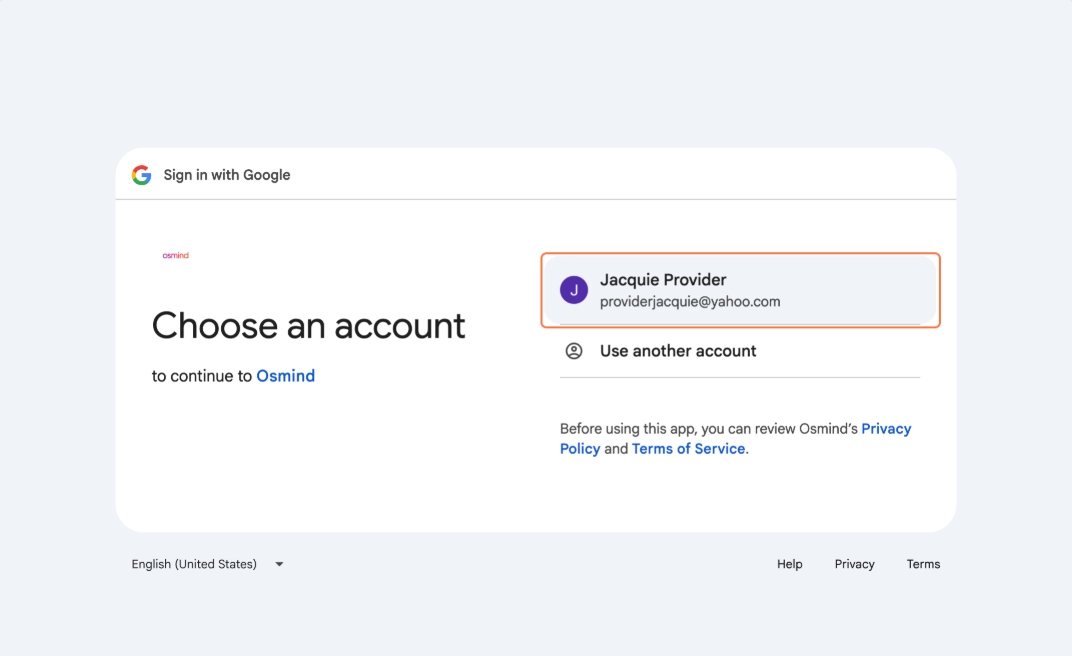
29. Click on Continue
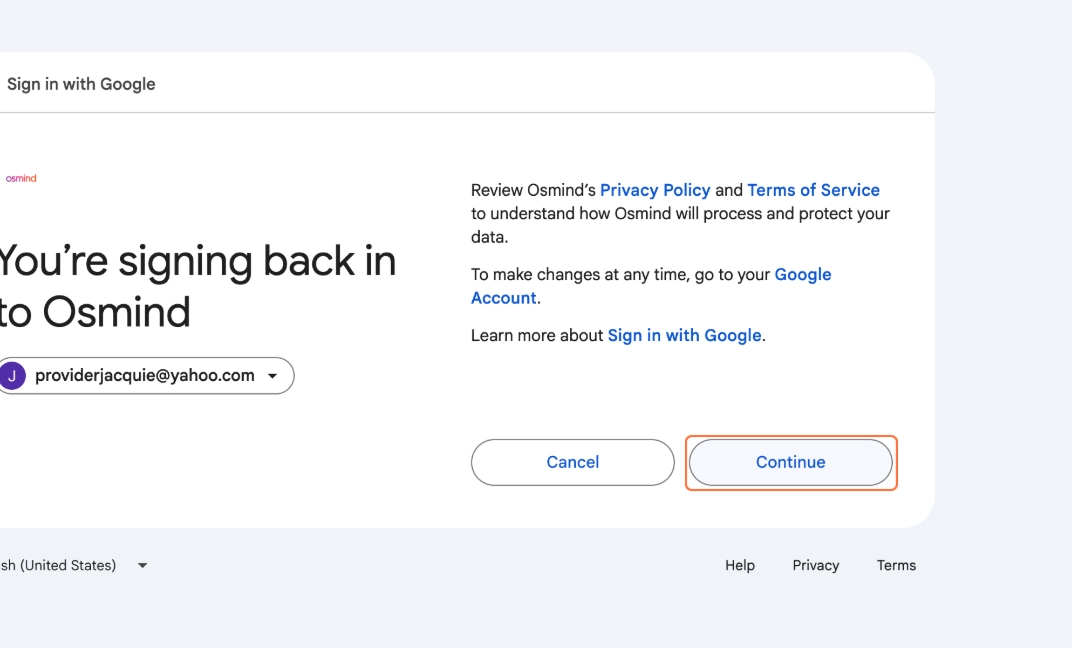
30. Click on Continue
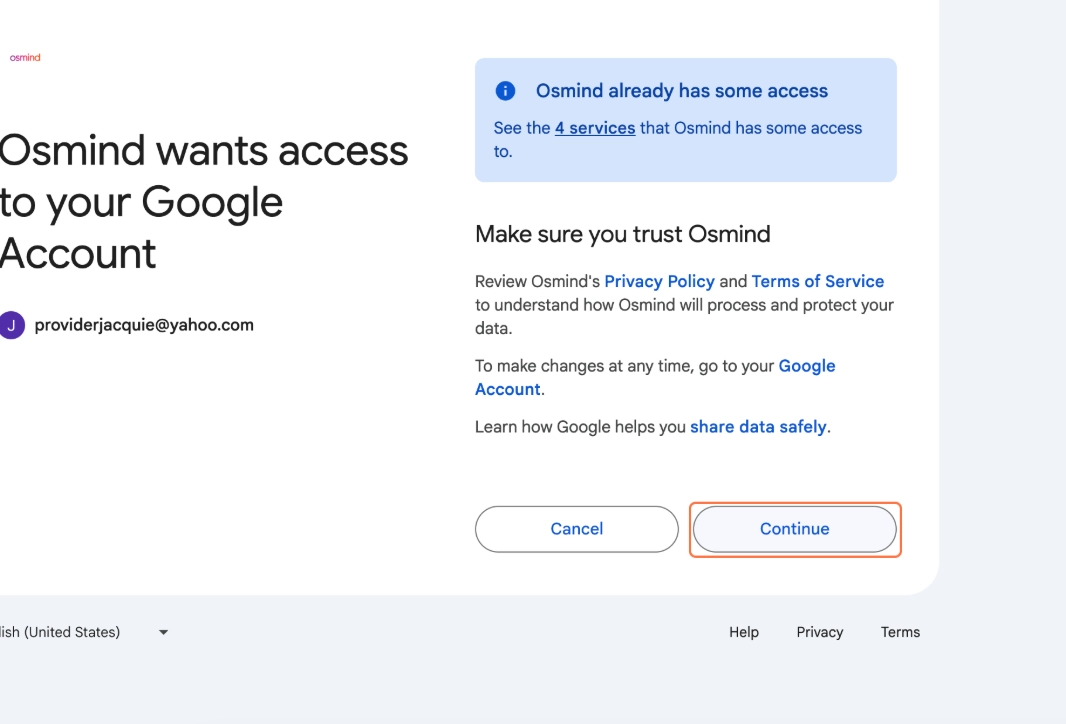
31. Review the calendars that you want to integrate into Osmind. You will want to make sure that you include the first practice at minimum.
You can also add your personal calendar. Anything you schedule on the calendar you connect will show as busy in Osmind, so your front desk won't double-book you if you're at another location.
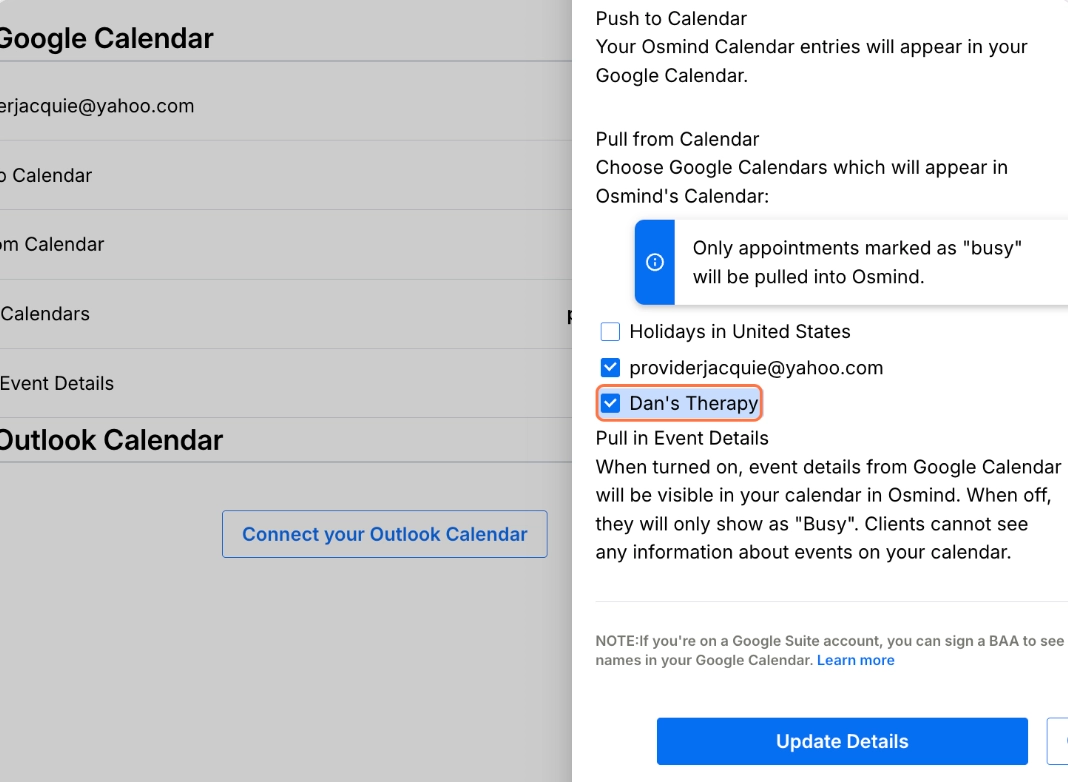
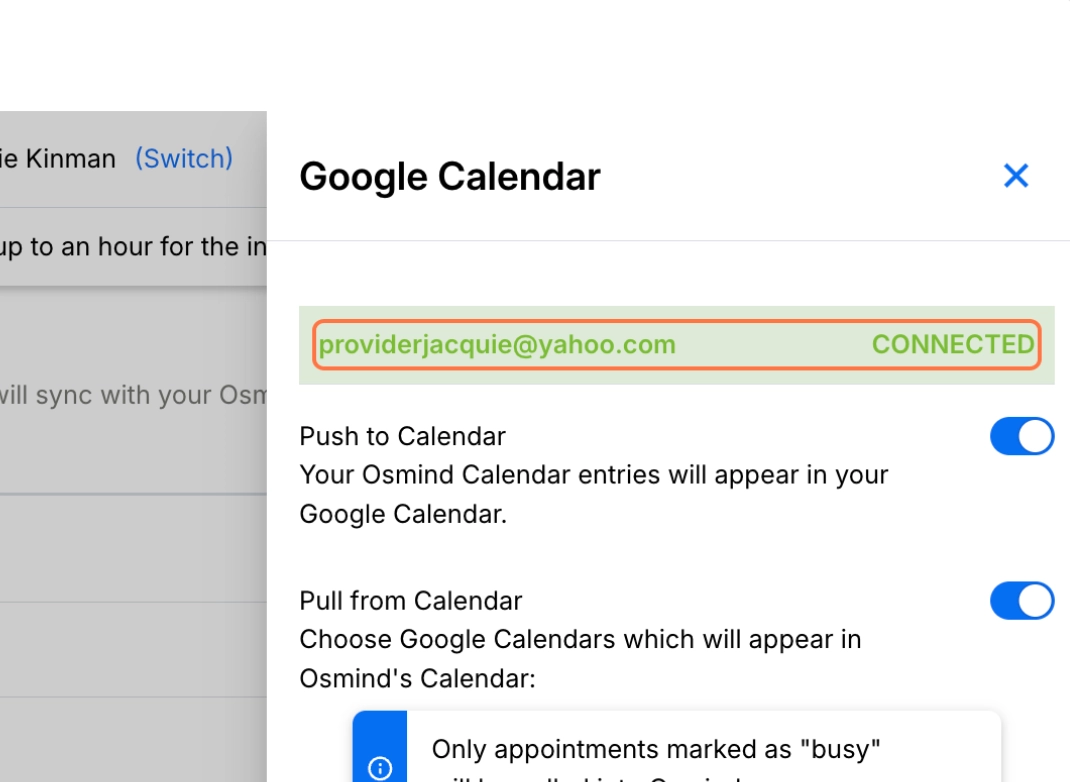
32. Osmind will confirm that your calendar is connected
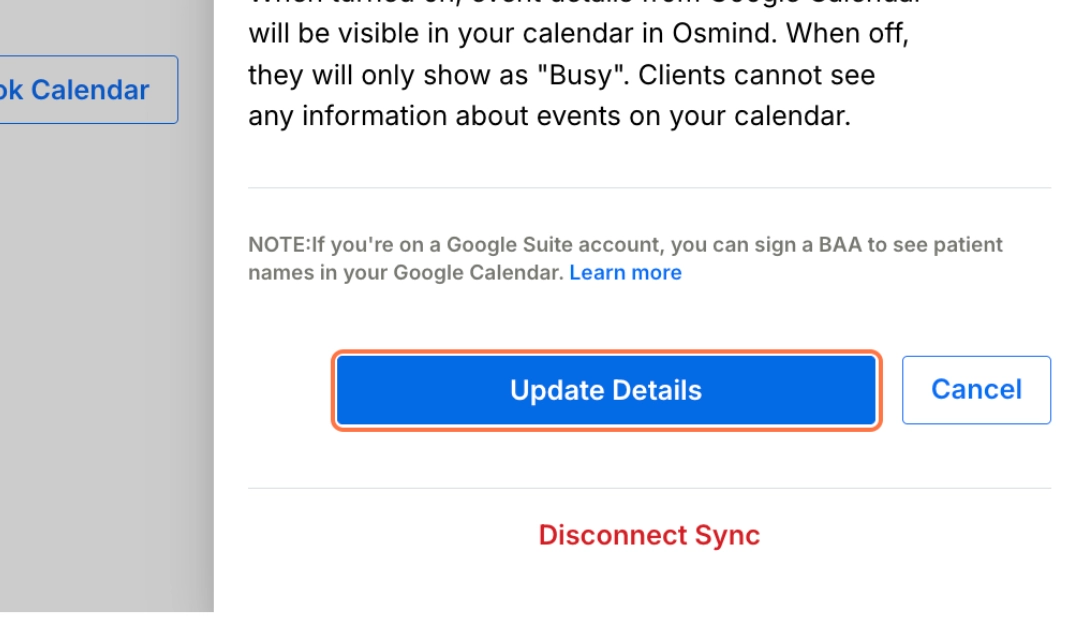
33. Click on Update Details
34. Go back to your Google Calendar an rename the second location