Set Up Locations and Rooms
Last updated: February 6, 2026
Osmind’s calendar gives practices the flexibility needed to run multi-location, multi-provider organizations, with built-in automations to reduce administrative work. In addition to locations, you can also set up rooms within a location to coordinate provider schedules and manage shared resources.
Rooms are often used to:
Manage multiple treatment rooms at a single location
Prevent double-booking of physical spaces
Track the use of specific equipment, devices, or therapies assigned to a provider
To enable in-person appointments, you must add at least one location in your account settings.
In This Article
Adding Locations or Rooms to Your Account
Setting Up Rooms
Booking an Appointment for a Location or Room
Online Booking for Patients
Setting Availability by Location on Your Calendar
Adding Locations or Rooms to Your Account
To add one or more in-person locations to your practice, or to add multiple rooms within a single location:
Navigate to Calendar → More → Appointment Locations
OR
Go to Settings → Appointment Locations
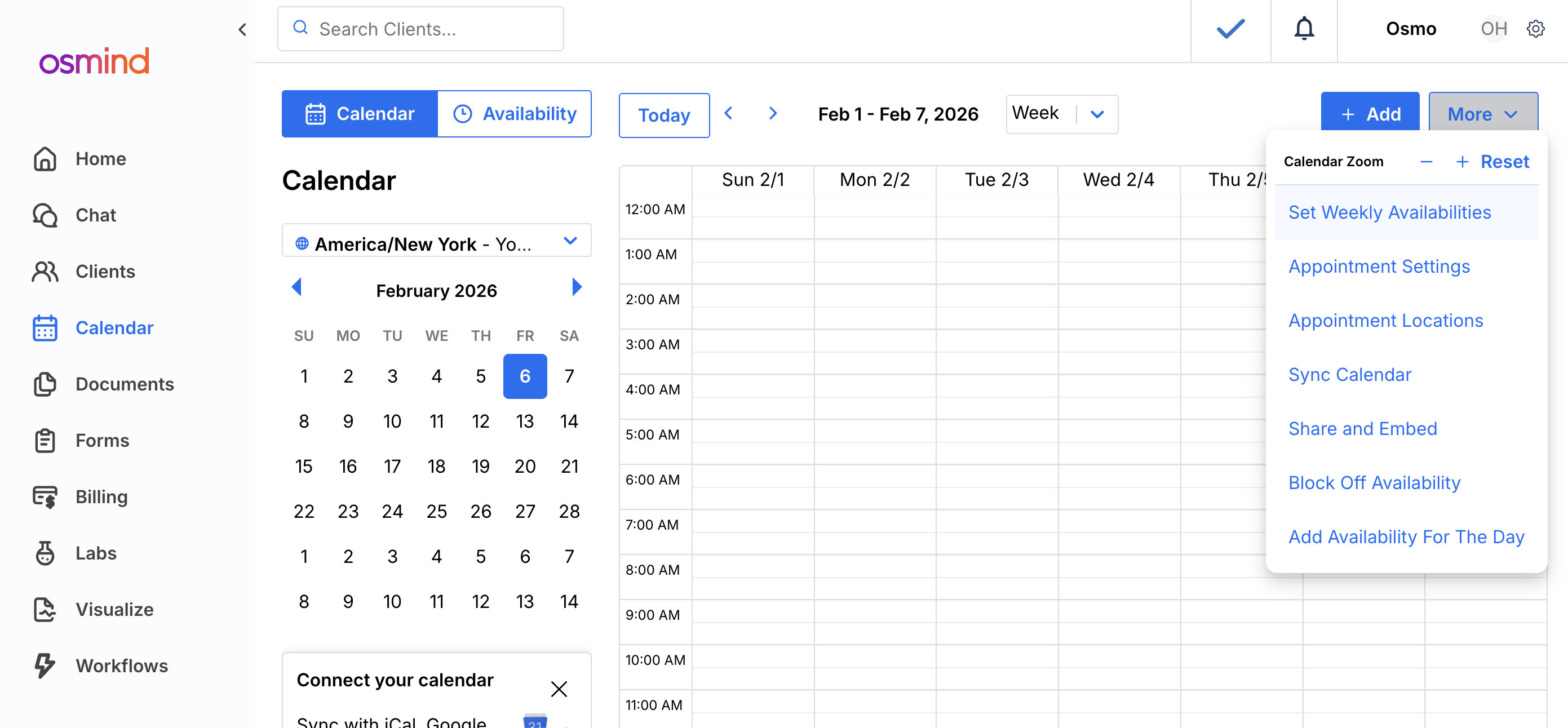
From here, add any locations and rooms that should be bookable by your staff and patients.
Once locations and rooms are created, you will be able to schedule appointments for them directly from the calendar.
Required Settings for Patient Booking
For patients to be able to book appointments at a location, ensure the following settings are enabled:
In Appointment Settings → Contact Types, confirm that In Person is included as a supported contact type
In Appointment Type Settings, confirm that:
The appointment type is marked as Bookable
The contact type In Person is enabled
Note:
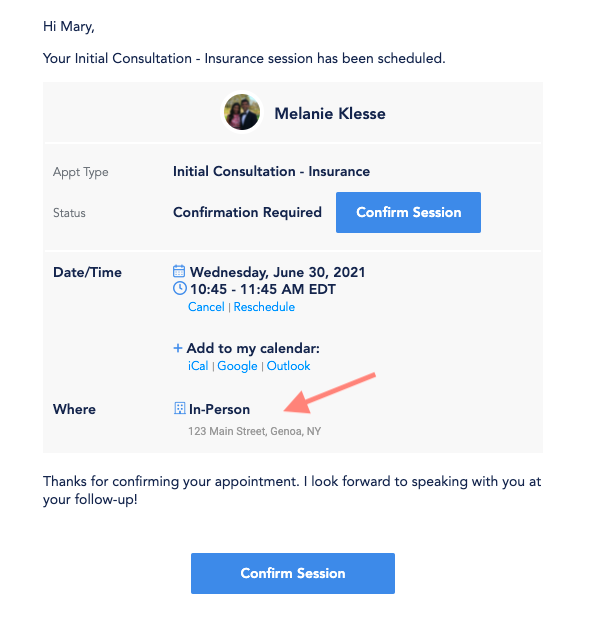
If you want the physical address to appear in patient appointment confirmation emails, use the location’s address as the Location Name.
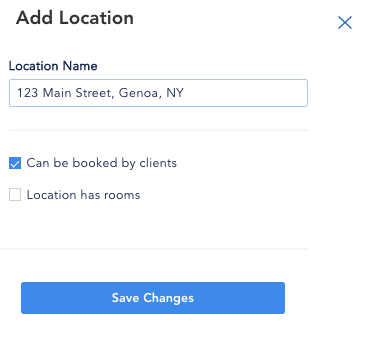
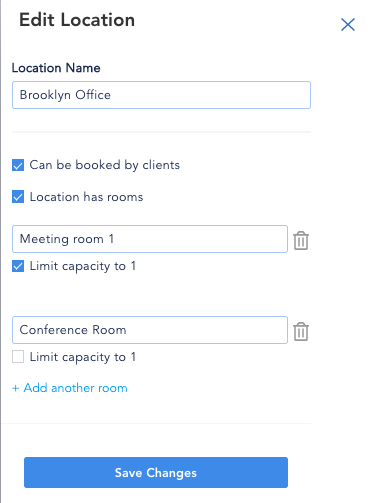
Setting Up Rooms
Osmind’s Rooms feature allows you to:
Create rooms within a single location and assign a room name
Schedule appointments into a specific room
Optionally prevent double-booking by limiting rooms to one session at a time
Rooms are optional, but recommended for practices managing shared spaces or equipment.
Booking an Appointment for a Location or Room
After locations and rooms are added, you can assign them when scheduling appointments.
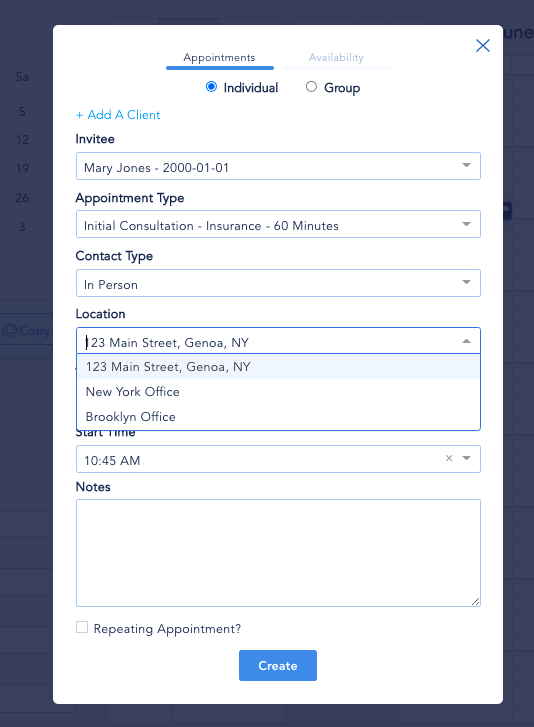
Navigate to Calendar → Add Appointment
Select In Person as the contact type
Choose the desired Location from the dropdown
If applicable, select a Room
The appointment will now be scheduled for that location and room.
Patients receive a confirmation email with appointment details. If the location name includes the physical address, the address will appear in the confirmation.
Online Booking for Patients
If an appointment type is marked as Bookable, patients can schedule appointments online using:
A direct calendar booking link
A direct appointment booking link
An embedded calendar on your website
Patients may also book appointments as part of a package purchase, if enabled.
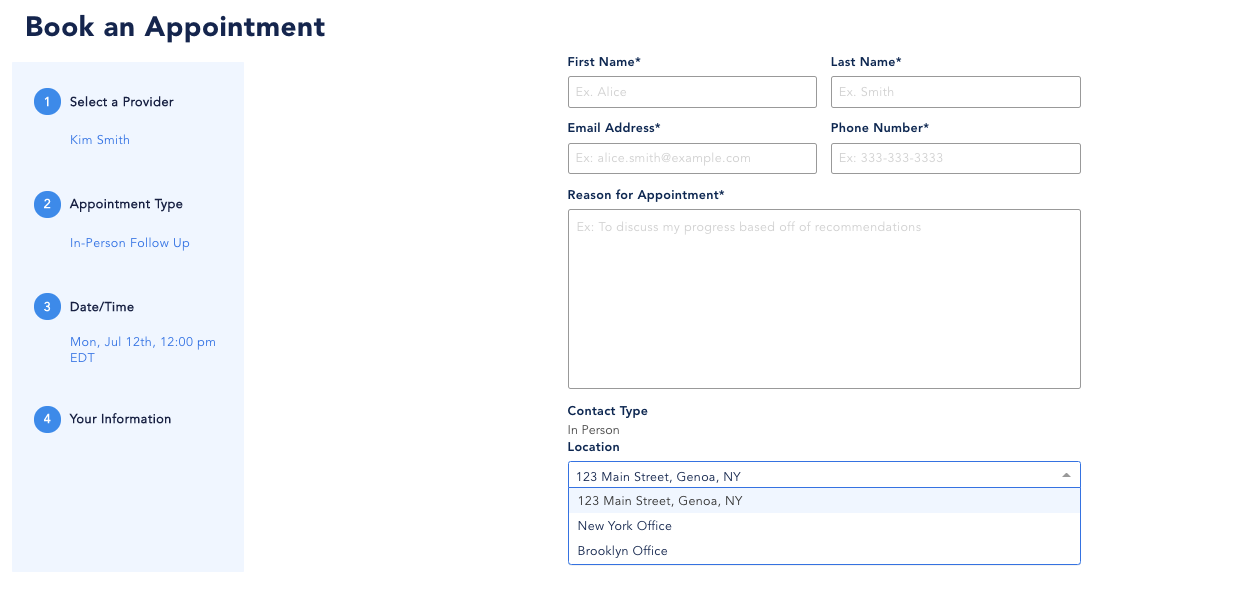
During online booking, patients will:
Select the appointment type
Choose a date and time
Enter their information
Select a location, if multiple locations are available
Patients cannot select a room during online booking. Room assignment must be handled internally by staff or providers.
Summary
Locations and rooms in Osmind help practices manage in-person care across multiple sites and shared spaces. Locations define where care is delivered, while rooms allow for more granular scheduling control and optional double-booking prevention. Together, they support efficient scheduling for both staff-scheduled and patient-booked appointments.