Introducing : Auto Creation of CMS 1500 in Your Clinical Notes
Last updated: July 17, 2026
Overview
Auto Creation CMS 1500 is a billing tool built directly into your Osmind clinical notes. When a provider signs and locks a note, a CMS 1500 claim is automatically created and synced to Candid overnight — no separate billing entry required.
Understanding how Auto Creation CMS 1500 works — including its prerequisites, error states, and limitations — is essential for smooth billing operations and avoiding claim delays.
Who Has Access
Access to Auto Creation CMS 1500 depends on your organization type:
User Type | Access |
|---|---|
Osmind Care Network | ✅ Enabled automatically |
Osmind 360 | ✅ Enabled automatically |
Osmind One | ❌ Not included in current plan |
If you are an Osmind One customer you can upgrade your plan (Schedule your demo)
At the patient and note level, the following must be true for a claim to be created:
Patient has an active insurance policy on file in their chart
All required billing fields in the panel are completed (CPT code, DX pointer)
Note is signed and locked by the provider
How Auto Creation CMS 1500 Works
End-to-End Flow
Provider opens a clinical note in Osmind
The Auto Creation CMS 1500 loads at the bottom of the note — fields are blank by default, no codes are pre-filled
Provider completes the note and fills in the required billing fields in the panel
Provider signs and locks the note
A CMS 1500 claim is created automatically in Osmind, and the linked appointment is automatically updated to "Occurred" status
Claim syncs to Candid overnight
✅ Why this matters: As long as the provider creates the clinical note directly from the appointment, Auto Creation CMS 1500 takes care of everything needed for the claim to sync to Candid that night — including updating the appointment status. No extra steps required.
CMS 1500 creation happens at sign/lock — not when the note is saved. If required fields are missing or an error condition exists at the time of lock, no claim will be created.
📋 Heads up: Auto Creation CMS 1500 covers the most common CMS 1500 fields, but not all of them. Fields like Referring Provider and Supervising Provider are not captured in the app. If your workflow requires these fields, providers can add any missing fields directly on the CMS1500 after creation — just make sure to do so before Candid syncs that night. |
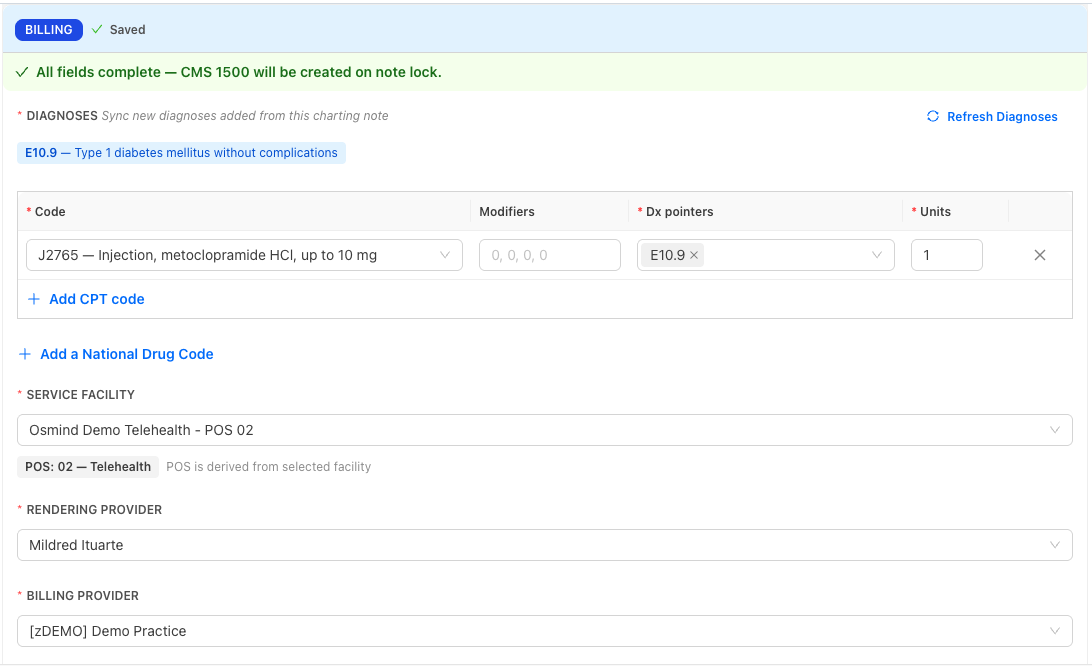
Required vs. Optional Auto Creation CMS 1500 Fields
Field | |
|---|---|
CPT code | ✅ Required |
DX pointer | ✅ Required |
Modifier | Optional |
NDC code | Optional — Candid auto-adds NDCs for J0013, G2082, G2083 |
Service Facility | ✅ Required |
Rendering Provider | ✅ Required |
Billing Provider | ✅ Required |
CPT Codes and the Service List
CPT codes in Auto Creation CMS 1500 are drawn from your organization's service list only — not the full CPT code library. If a code you need is not appearing, contact your CSM to have it added.
Old Billing Fields Still Showing in Your Note
You may still see billing item fields in the body of your clinical note. You can ignore these—enter your billing codes through the Auto Creation CMS 1500 panel instead. The fields stay visible to support non-Candid user workflows, but once you're using the new billing section, there's no need to fill them out.
Rendering Provider Defaults
The Auto Creation CMS 1500 assigns the rendering provider in the following order:
The provider assigned to the appointment
The note creator
Modifier Field & NPI Mismatch
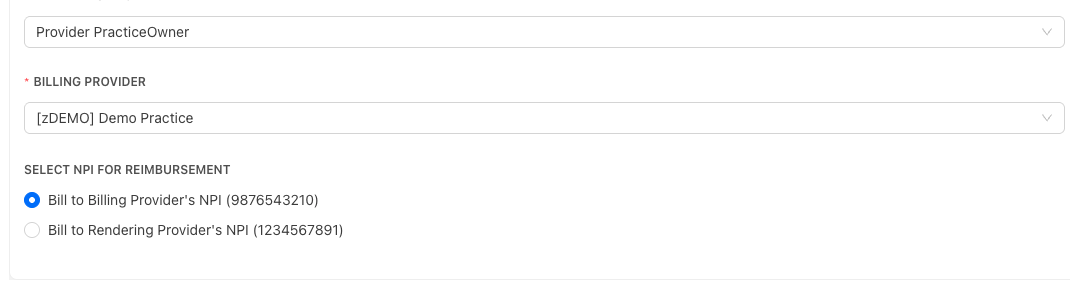
The modifier field only appears when the Rendering Provider NPI and Billing Provider NPI are different. When this happens, Auto Creation CMS 1500 defaults to submitting reimbursement under the Billing Provider on file.
Heads up for providers: If your NPI doesn't match your org's Billing Provider NPI, your claim will be submitted under the Billing Provider by default. If you'd prefer reimbursement to be submitted under your individual NPI instead, you can override this in the Billing panel before locking the note.
Error States
If something goes wrong at note lock, an error banner will appear in the Billing panel and the note will go into read-only mode. No claim will be created until the error is resolved.
To resolve any error: Unlock the note → Fix the issue → Relock
Post-Lock Errors
Note not signed
The note was locked without a provider signature. A task is automatically triggered to the provider to unlock, sign, and relock.

No active insurance
No active insurance policy is on file for the patient. Add an active policy to the patient chart, then unlock and relock the note.

Missing required fields
The CPT code or DX pointer was not completed before locking. Unlock the note, complete all required fields, and relock.

Other Error Types
Concurrent edit
If two users have the Auto Creation CMS 1500 panel open at the same time, a modal will appear. The last save wins. Coordinate with your team if multiple people are working in the same note.
Load failure
If the Auto Creation CMS 1500 panel fails to load, refresh the page. If the issue persists, contact Osmind support.
Common Pitfalls to Avoid
Locking a note before completing Auto Creation CMS 1500 fields. Required fields cannot be enforced before note lock — but if they're missing, no claim will be created. Build a habit of completing the Auto Creation CMS 1500 panel before locking.
Assuming the claim was created without checking. If an error condition existed at lock, no claim is created and no notification is sent beyond the in-note banner. Confirm claim creation in Osmind after locking.
Expecting CPT codes outside your service list to appear. Only codes on your org's service list are available. If a needed code is missing, contact your CSM.
Leaving taxonomy codes unconfigured. Codes will not flow to Candid correctly if taxonomy codes are not set up prior to first use.
Questions?
Reach out to your Customer Success Manager or contact Osmind Support directly through the Support Portal