Set and Remove Availability
Last updated: February 6, 2026
You can set your default availability in Osmind to allow patients to self-book appointments with you and to help other team members understand when you are available for sessions. Setting availability reduces administrative overhead and ensures accurate availability is reflected wherever patients can book—such as the patient portal or embedded booking tools.
Availability also automatically syncs anywhere your Osmind calendar is displayed for patient booking.
Additional notes:
For Organizations: Providers can manage availability on a shared organization calendar, including setting availability on behalf of other providers.
For Group Appointments: General availability does not allow patients to self-book group sessions. Group appointments must be directly added to the calendar by a provider for patients to enroll. Group scheduling is covered separately.
In This Article
One-Time vs Recurring Availability
Set and Adjust Recurring Availability
Set and Adjust One-Time Availability
Block Time (Out of Office)
No Availability
Extend Daily Availability View on Calendar
View Availability for All Appointment Types
Availability FAQs
One-Time vs Recurring Availability
Osmind supports two types of availability. Availability is used only to determine when patients can self-book appointments. Providers and staff scheduling appointments on behalf of a patient are not restricted by availability blocks.
One-time availability:
Availability set for a specific date and time that does not repeat.Recurring availability:
Availability that repeats weekly on selected days and times unless blocked by:an external calendar sync, or
a manually added block of time.
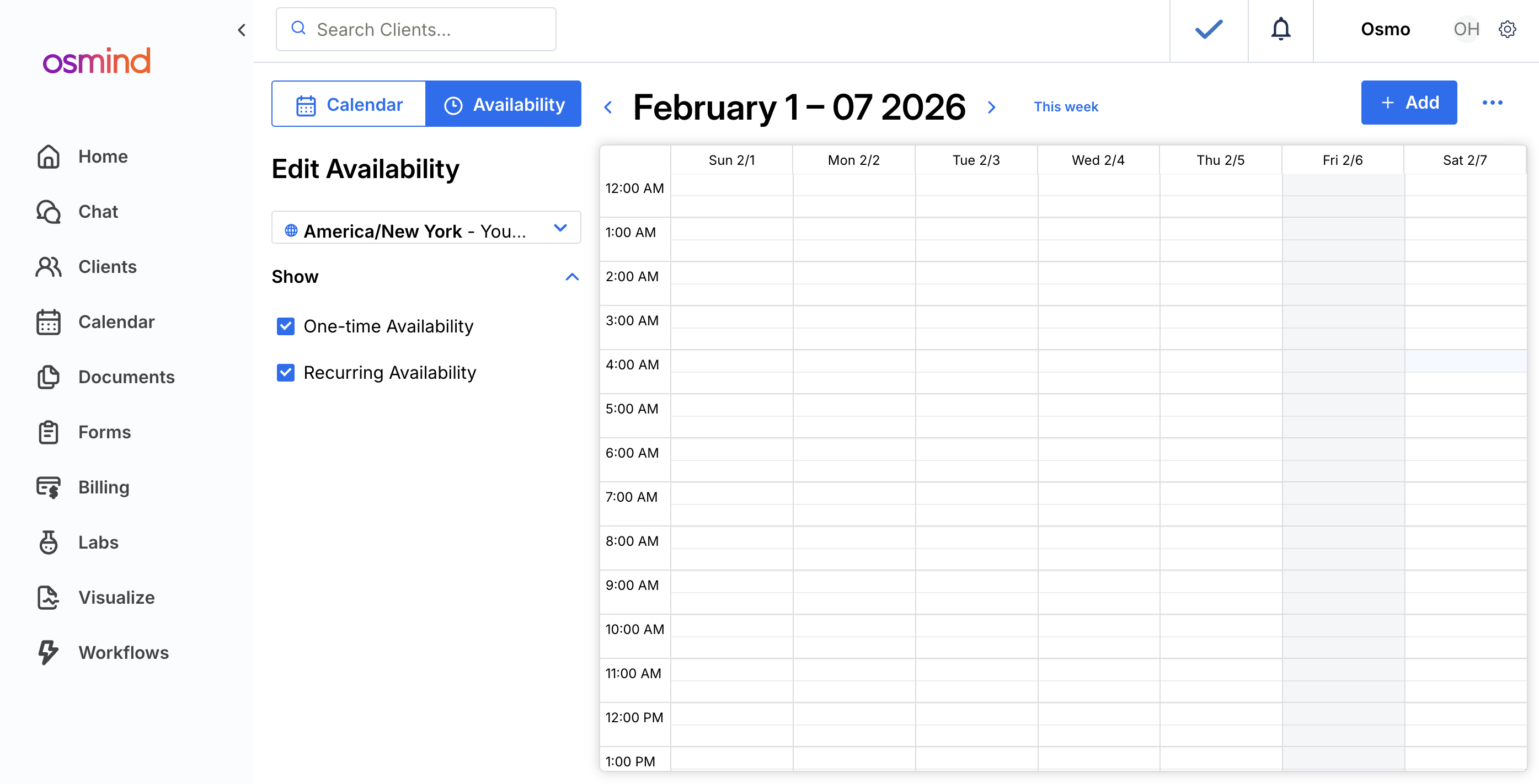
To manage availability, navigate to Calendar → Availability (tab in the upper-left of the calendar view).
Set & Adjust Recurring Availability
Recurring availability defines your default weekly schedule for patient self-booking.
Navigate to Calendar → Availability
Ensure Show “Recurring Availability” is selected in the side panel
Click the day of the week you want to add availability for (e.g., Monday)
In the Edit Availability panel:
Check “This is weekly availability”
Confirm the start date
Confirm the day of the week
Set start time and end time
Click Save
Your recurring availability will now appear on the calendar.
Notes:
You can optionally set an end date for recurring availability
Availability can be edited or deleted at any time via Availability → Edit
If availability is set by appointment type or location, availability must be configured separately for each appointment type
In organizations, availability can be set on behalf of other providers via the Organization Calendar
Once availability is set, patients can self-book during those times
Set & Adjust One-Time Availability
One-time availability is used to add availability for specific dates that do not repeat.
Navigate to Calendar → Availability
Ensure Show “One-Time Availability” is selected
Navigate to the desired week using the calendar arrows
Click the day you want to add availability
In the availability panel:
Confirm the date
Set start time and end time
Click Save
The availability will now appear on your calendar.
You can edit or delete one-time availability at any time via Availability → Edit.
Block Time (Out of Office)
If you need to prevent patients from booking during specific times, you can block availability on a one-time basis.
If you have recurring availability set, blocking time is the recommended way to mark time off
Blocking time prevents patient self-booking without removing your recurring schedule
Use blocked time for:
vacations
meetings
administrative work
personal time
No Availability
If no availability is set for an appointment type, patients will be notified during the booking process that no times are available.
If you do not want patients to self-book at all, you can disable patient booking from your Calendar Preferences.
Extend Daily Availability View on Calendar
You can adjust the visible hours shown on your calendar.
Navigate to Settings → Calendar
Scroll to Appointment Timing
Update the Calendar Default Display start and end times
This only affects the visible calendar range and does not change availability itself.
View Availability for All Appointment Types
When Availability by Appointment Type is enabled:
Providers can set availability separately per appointment type
The “ALL” option appears in the Appointment Type filter within Availability view
Selecting ALL displays availability across all appointment types
Overlapping availability blocks will display together
Hover over an availability block to view additional details.
Availability FAQs
Can I block time to work on tasks?
Yes. To reserve time for internal work or tasks:
Add a one-time availability block so patients cannot book during that time, or
Create an appointment type (e.g., “Admin” or “Task”) to visibly reserve time on the calendar for yourself and your team
Both options prevent patient bookings while clearly showing that time is unavailable.